You can bulk delete Gmail messages on an iPhone, but the app selects up to 50 at a time. For a much larger cleanup, use Gmail on a computer: its second Select all conversations that match this search link reaches beyond the visible page. Check the search results before deleting; an Inbox cleanup and an All Mail cleanup are very different jobs.
My 2023 video shows a Safari desktop-site workaround for selecting more than 50 at once on an iPhone. Gmail’s iPhone app has since gained a Select all control for 50-message batches, so start with the current app method below. The video is still useful for seeing the full desktop selection link, but Safari settings and the mobile page may look different now.
Delete up to 50 Gmail messages at a time on iPhone
- Open the Gmail app and go to the Inbox, a category such as Promotions, or a search result. If you’re targeting old mail or one sender, enter a search first.
- Touch and hold one message. Tap Select all at the top left. Gmail selects up to 50 messages.
- Look over what is selected, then tap the trash icon. To remove another batch, return to the top and use Select all again.
This is the method in Google’s current iPhone instructions. The Gmail app does not offer the computer’s single link for every matching conversation beyond the current batch.
Delete every message matching a Gmail search on a computer
- Open Gmail on a computer and search for the mail you want to remove. Review the results, especially if the search includes archived messages.
- Click the select checkbox above the message list. This selects the conversations on the visible page.
- If Gmail shows a banner saying the page is selected, click Select all conversations that match this search. That second click is what extends the action beyond the first page. If there is no such link, you may already have selected everything in the result.
- Click Delete and confirm any bulk-action prompt. For a very large mailbox, Gmail may take time to finish.
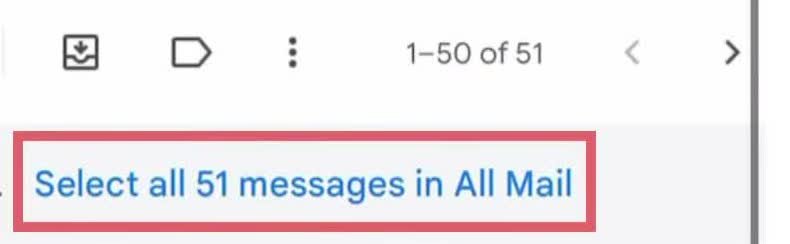
The same control works in Inbox, Promotions, or All Mail. Be careful with All Mail: it includes archived messages you no longer see in the Inbox. Conversation View can group several messages into one conversation, so the count may refer to conversations rather than individual emails. If all you want is a cleaner Inbox while keeping the messages, archive them instead of deleting them.
Useful searches before you click Delete
Type one of these in Gmail’s search box, then review the result list before selecting anything. Google’s search-operator reference documents the current syntax.
| What to find | Search |
|---|---|
| Mail from one sender | from:sender@example.com |
| Mail older than a year | older_than:1y |
| Unread mail | is:unread |
| Promotions | category:promotions |
| Old Promotions | category:promotions older_than:1y |
| Large attachments | has:attachment larger:10M |
A search can find messages outside your Inbox. If you only want Inbox mail, add in:inbox to the query. Combining a sender, category, and age usually makes a big deletion easier to inspect. To keep future mail organized automatically, use Gmail filters after the cleanup.
What happens after deletion?
Deleted Gmail messages go to Trash, where they can normally be recovered for 30 days. Emptying Trash permanently removes them sooner. Don’t empty it immediately after a large cleanup; first make sure you didn’t include a sender or category you meant to keep. See Google’s deletion and recovery guide for the current recovery window and Trash steps.
Deleting emails does not delete your Gmail account. The account-deletion guide covers that separate action.