Upgrading macOS isn’t always “newer is better.” The best macOS for you depends on your Mac model, Intel vs Apple silicon, and whether your workflow relies on older drivers, plugins, or security tools.
In 2026, Apple’s “current support” focus is macOS Sonoma, macOS Sequoia, and macOS Tahoe. This guide helps you choose between those three — and then shows when an older macOS (or an unsupported upgrade) is the smarter move for an older Mac.
Quick note: If your Mac officially supports a newer macOS, upgrading is usually the correct move for security updates and long-term app compatibility. The “hard decisions” start when your Mac is older Intel or you rely on legacy apps, plugins, printers, VPN/security software, or hardware drivers.
Safety rule (do this first): Before any macOS upgrade (supported or unsupported), make a backup and confirm compatibility for your must-have apps, printers, VPN/security software, audio/video gear, and plugins. Most upgrade “disasters” are compatibility issues — not the macOS installer.
If you want Apple’s official “upgrade vs update” framing (it matters for expectations), see: Apple: Update macOS on Mac
Before you upgrade
Back up first. I say this in every upgrade video and I mean it every time — Time Machine to an external drive is the easiest option, and it’s the difference between a bad upgrade being an afternoon of annoyance versus a real problem. If you don’t have a drive for it, an Kingston XS1000 2TB portable SSD is the least painful way to do it. Those are affiliate links — as an Amazon Associate I earn from qualifying purchases, at no extra cost to you.
Table of Contents
- Check Your macOS Version
- Check What Your Mac Supports
- Verify App And Driver Compatibility
- Choose The Right Upgrade Path
- macOS Sonoma
- macOS Sequoia
- macOS Tahoe
- Unsupported Upgrades And Older macOS Options
- Back Up Before You Upgrade
- Test After You Upgrade
- Fix Common Upgrade Problems
- Trusted References
- Why Apple Drops Older Macs
- Frequently Asked Questions
Check Your macOS Version
First, confirm what you’re running right now:
- Click the Apple menu (top-left).
- Click About This Mac.
- Your macOS version is listed in the window.
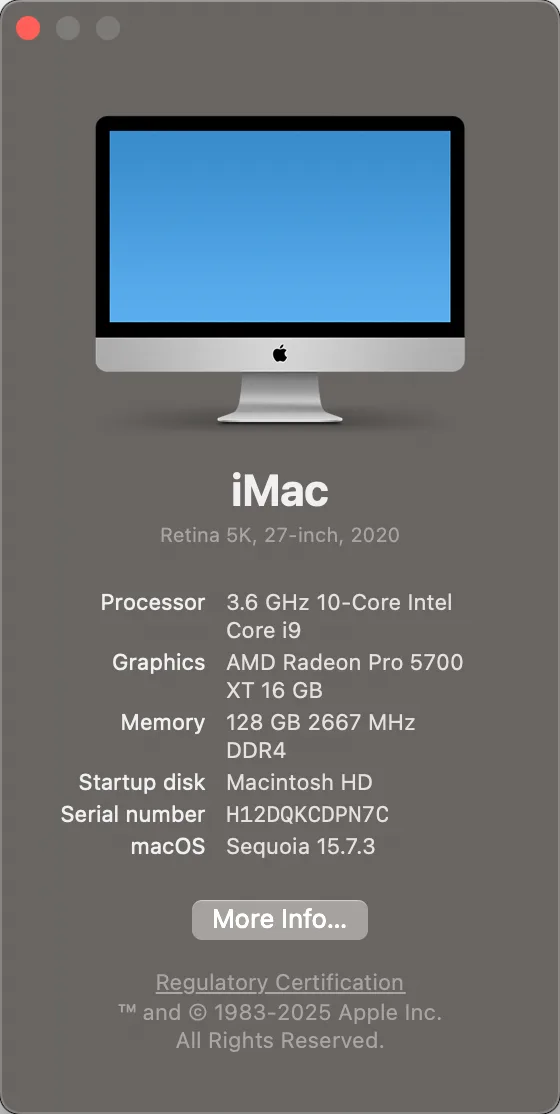
If you’re supporting multiple Macs (family, office, clients), write this down for each device. Your upgrade decision is always: current version → maximum supported version → workflow compatibility.
Check What Your Mac Supports
Next, find the newest macOS version your exact Mac supports. Start with the built-in method, then confirm with Apple’s official compatibility lists.
Fast check: Apple menu → System Settings → General → Software Update
If your Mac supports a newer macOS, it usually appears here as an available upgrade.
Then confirm with Apple’s model lists (best source) and MacSales for older model history:
- Apple: macOS compatibility (official lists)
- Apple: macOS Tahoe compatible Macs
- MacSales: Mac OS Compatibility Guide (great for older Macs)
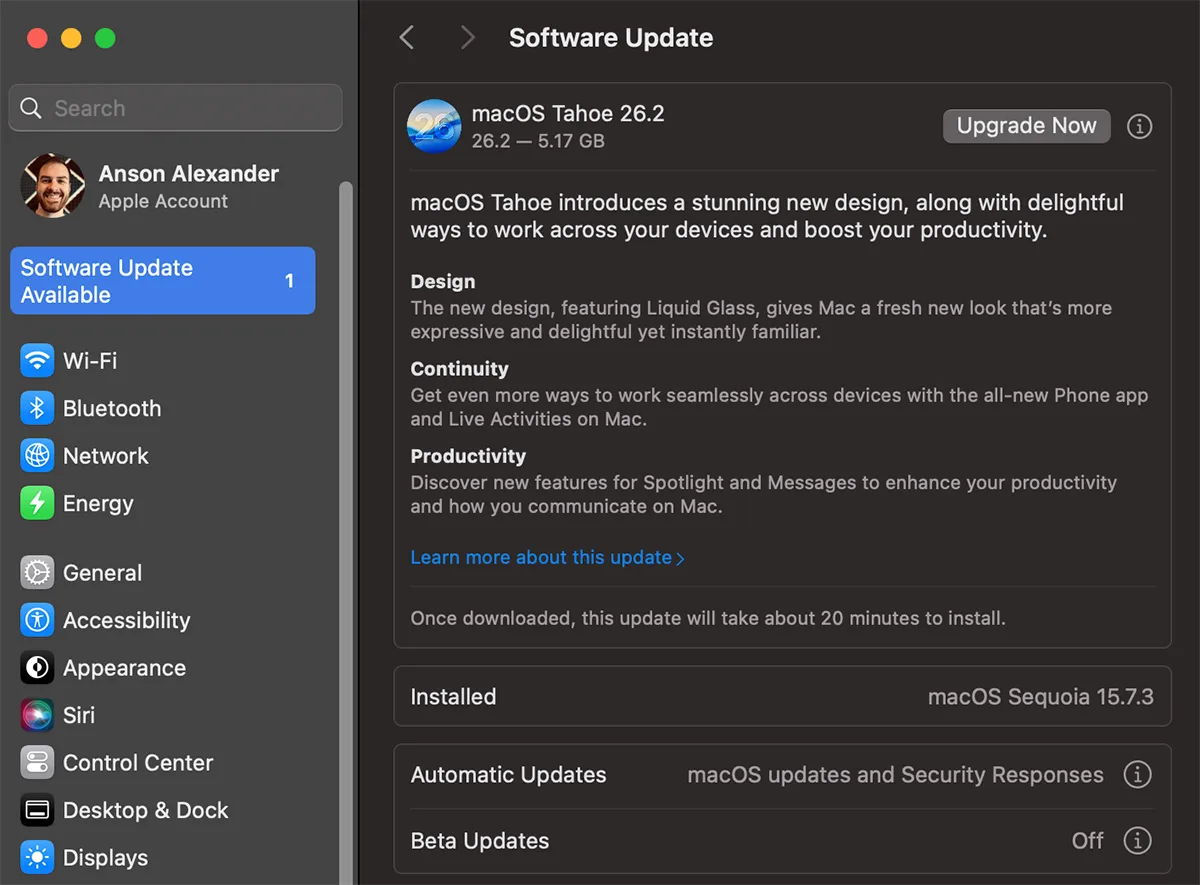
Intel vs Apple silicon matters: Apple silicon Macs usually get the newest features and longest support runway. Intel Macs can still be great — but your upgrade choices should be more conservative if you rely on older drivers, VPN/security tools, or pro audio/video plugins. If a worn battery is what’s holding a 2017 MacBook Air back, the model-specific battery replacement guide shows the hardware side of that decision.
Verify App And Driver Compatibility
This is what most upgrade guides skip — and it’s what actually breaks workflows. Before you upgrade, confirm the items below (especially if you do paid work, record content, print frequently, or use older plugins/hardware).
Compatibility checklist (verify before you click Upgrade):
- Must-have apps: Adobe apps, Final Cut, Logic, DaVinci Resolve, OBS, Stream Deck, capture utilities.
- Plugins: older AU/VST plugins, audio post plugins, specialty codecs, niche utilities.
- Printers/scanners: confirm macOS support for your exact model (vendor site is the source of truth).
- Audio/video gear: USB interfaces, mixers, capture cards, webcams, MIDI controllers — verify vendor support for your target macOS.
- VPN + security software: common breakage point (system extensions + network filtering).
- Cloud sync: Dropbox/Google Drive/OneDrive versions should support your target macOS.
- Windows needs: Boot Camp is Intel-only; Apple silicon changes the plan to virtualization or a separate Windows system.
Practical rule: If your Mac is stable and earning you money, don’t upgrade just because a new macOS exists. Upgrade when you need security, app compatibility, or a feature you’ll actually use weekly.
If a feature is your reason for upgrading (Continuity, Apple Intelligence, etc.), verify requirements first: Apple: Continuity features and requirements
Choose The Right Upgrade Path
Use this decision tree. It’s intentionally simple so it holds up across versions and avoids “chasing the newest thing.”
- Apple silicon: upgrade to the newest supported macOS after confirming your must-have apps and drivers.
- Intel Mac (still supported): upgrading is usually smart for security, but be extra careful with drivers, VPN/security tools, printers, and older plugins.
- Older Intel (unsupported): choose stability for your primary work Mac; use unsupported upgrades mainly for secondary Macs or feature-specific setups.
If you’re undecided between two versions, choose the one that your essential apps explicitly support today. The “best macOS” is the one that lets you work without surprises.
macOS Sonoma
Sonoma is a common “sweet spot” upgrade: modern enough to keep you compatible and secure, but often smoother than jumping straight to the newest release on older hardware.
Best for: supported Intel Macs that you want to keep stable, plus Apple silicon Macs where you want modern features without feeling like you’re living on the edge.
Sonoma features most people actually notice:
- Desktop widgets (and better widget behavior overall)
- Safari Profiles (useful if you separate work/personal, client logins, or multiple Google accounts)
- Video conferencing improvements (small things, but they add up if you’re on calls constantly)
- Game Mode (nice on Apple silicon Macs if you game at all)
Support mindset: Sonoma is still a strong default if you’re cautious about driver-heavy setups (printers, security tools, older audio gear) and you don’t need the newest headline features.
To sanity-check what Apple is actively patching (and why this matters for long-term safety), bookmark: Apple: Security Releases
macOS Sequoia
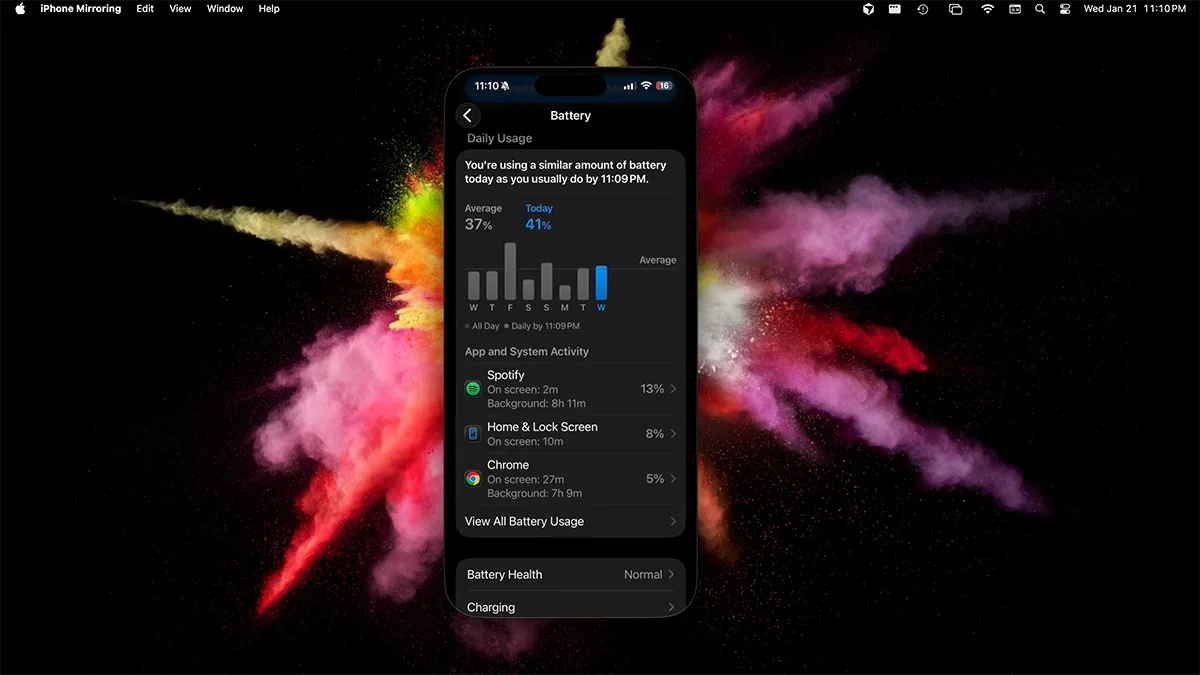
Sequoia is where “Mac + iPhone together” becomes a legitimate upgrade reason for a lot of people. If you live in Apple’s ecosystem, Sequoia is the release that can change daily workflow — as long as your devices qualify.
Sequoia is worth it if: you’ll use iPhone Mirroring, you rely on Continuity features, or you want the newest macOS line that still tends to feel “settled” once patched.
Sequoia highlights to care about:
- iPhone Mirroring (turn your iPhone into a “Mac window” when you need it)
- Continuity improvements (best when your Mac + iPhone + Apple ID lineup is modern)
- Security + platform momentum (a practical reason: apps and vendors tend to prioritize current lines)
Apple Intelligence note: Apple Intelligence is primarily an Apple silicon feature set. Intel Macs won’t get the full Apple Intelligence experience, even if they can install the OS.
Official requirements: Apple: How to get Apple Intelligence
If iPhone Mirroring (or any Continuity feature) is your reason for upgrading, confirm device requirements first so you don’t upgrade and then realize your Mac/iPhone combo doesn’t qualify: Apple: Continuity features and requirements
macOS Tahoe
Tahoe is a “direction” release — and in practice, it’s the kind of macOS where Apple silicon Macs get the best experience and longest runway. If you’re still on Intel, your upgrade decisions should be more compatibility-driven and less “newest for newest’s sake.”
Tahoe upgrade mindset: If your Mac supports Tahoe, upgrade after you confirm app/driver compatibility. The goal is stability and future security updates — not bragging rights.
What readers usually want to know about Tahoe:
- Compatibility: Tahoe support is model-specific — confirm your exact Mac first.
- Intel reality: if your Intel Mac supports Tahoe, treat it as a “maximum support” milestone and plan your hardware timeline accordingly.
- Workflow risk: drivers, VPN/security tools, printers, and older plugins are still the top reasons upgrades go sideways.
Start with Apple’s official Tahoe pages:
- Apple: macOS Tahoe compatible Macs
- Apple: How to upgrade to macOS Tahoe
- Apple: What’s new in updates for macOS Tahoe

Support check: If you’re trying to confirm what Apple is actively patching right now (this is the simplest “supported vs not supported” reality check), use: Apple: Security Releases
Tahoe Compatibility And The Last macOS For Intel Macs
Tahoe is the cut-off point for Intel Macs, so it is worth knowing exactly where your machine sits before you plan an upgrade. If your Mac isn’t on Apple’s list, my unsupported Tahoe guide shows how I installed it with OpenCore Legacy Patcher. The full supported-model list and what “last supported macOS” means for an Intel Mac are covered here:
Unsupported Upgrades And Older macOS Options
I’ve installed unsupported macOS versions on older Macs many times. The question isn’t “can you?” — it’s “should you?”
My rule: I don’t recommend unsupported installs on your primary work Mac. Unsupported installs are inherently less predictable, and updates can introduce new issues without warning.
That said, unsupported upgrades can be perfect for older Macs that would otherwise sit unused — especially when a newer feature gives that machine a real purpose again (secondary desk Mac, dedicated recording rig, testing machine, family/shared Mac).
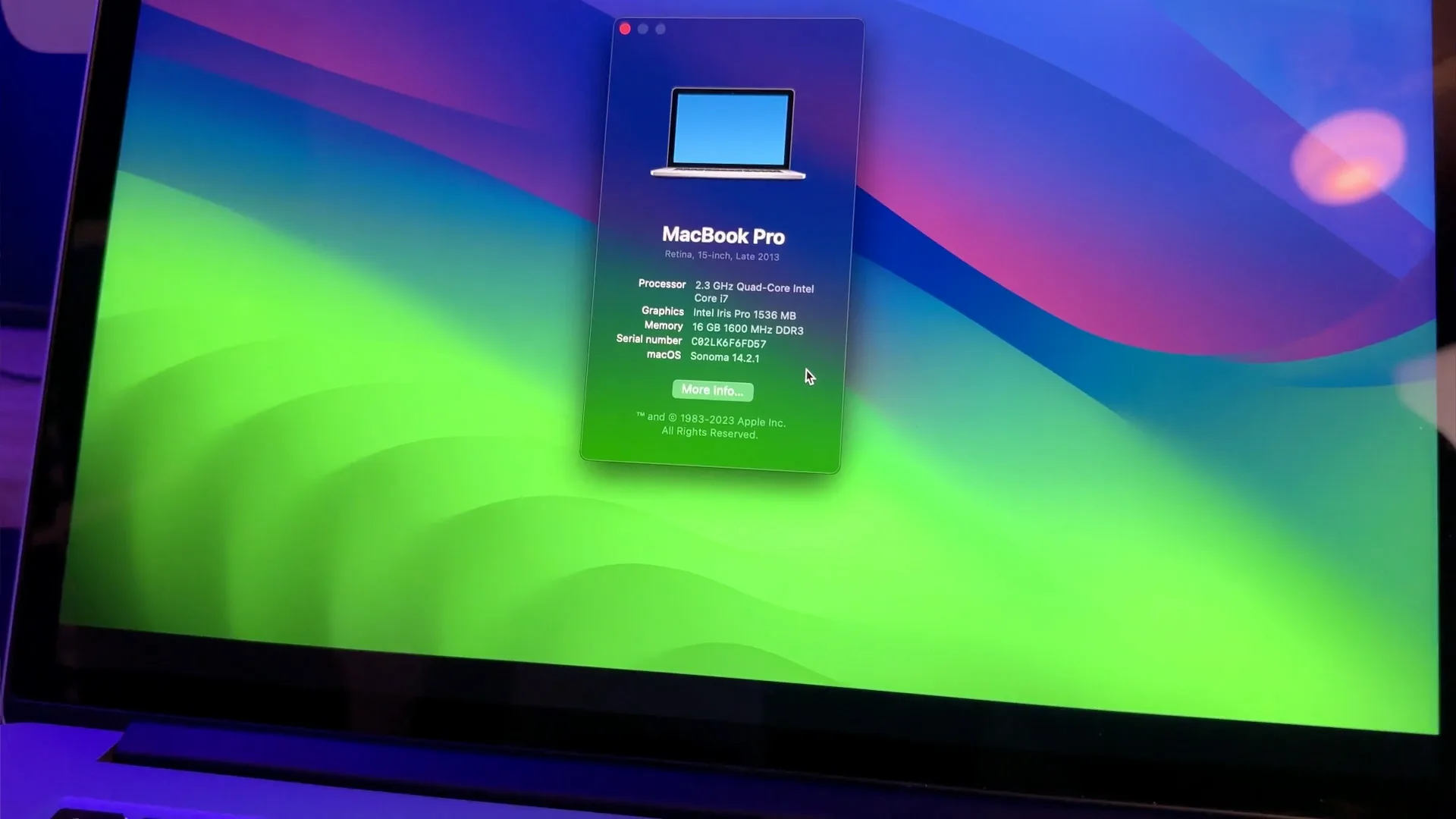
Unsupported upgrades make sense when:
- You have an older Mac that’s basically unused, and you want to give it a purpose again.
- You need a specific newer feature on a secondary Mac.
- You’re comfortable troubleshooting and you’ll keep a rollback plan.
My step-by-step guides for unsupported installs: how to install macOS Tahoe on an unsupported Mac (newest, OCLP 3.0 prerelease) and how to install macOS Sequoia on an unsupported Mac
OpenCore Legacy Patcher (OCLP) is the most common route for unsupported installs. Use the official Dortania docs and read the model notes carefully:
Older macOS versions (still useful on older Macs)
If your Mac can’t realistically run Sonoma/Sequoia/Tahoe well (or you need older driver support), these older macOS versions can still be the “right” choice — especially for dedicated roles. Just understand they may not receive the newest security patches forever.
- macOS Ventura: solid modern baseline for many Intel Macs; includes Continuity Camera and Stage Manager (useful for some setups, optional for most).
- macOS Monterey: stability-first option on older Intel Macs; notable features include Universal Control and AirPlay to Mac.
- macOS Big Sur: a common “last good stop” for some older Intel Macs when newer versions feel slow or break older peripherals.
If you want the cleanest “what Apple is actively patching” reality check, this page is the simplest reference: Apple: Security Releases
Back Up Before You Upgrade
Before any major upgrade, make a backup. Time Machine is the most straightforward option, but any full backup method is better than none.
Best-practice order: verify compatibility → back up → upgrade → test your essentials.
Apple’s official backup resources:
My preference: I like a clean install when I’m making a big version jump. It takes longer, but it avoids lingering issues and forces better file organization. If you do a clean install, confirm you know how to reinstall your essentials (licenses, plugins, printers, VPN profiles) before you wipe anything.
Test After You Upgrade
Do this immediately after upgrading so you don’t get surprised later (or right before a deadline). The goal is to validate your workflow in 10–15 minutes.
Post-upgrade test checklist:
- Wi-Fi + Bluetooth: connect and verify stability.
- External displays: confirm correct resolution and refresh rate.
- Camera + mic: verify correct inputs in FaceTime/Zoom/OBS.
- Audio interfaces/capture devices: confirm devices appear and function.
- Printers/scanners: print/scan one test page if you rely on them.
- VPN/security tools: connect and confirm browsing works normally.
- Core apps: open your top 3 daily apps and confirm normal behavior.
- Cloud sync: confirm files actually sync (not just “signed in”).
If something fails, don’t keep random-toggling settings. Identify the category (driver, system extension, vendor app, hardware firmware) and fix it intentionally. That approach saves hours.
Fix Common Upgrade Problems
These are the most common categories that break after a macOS upgrade, along with the fastest “first fixes” that actually work.
Printers and scanners: Update vendor software, remove/re-add the printer, or use AirPrint if supported. If your model is old, check the vendor site for “last supported macOS.”
If a printer worked yesterday and died after an upgrade, it’s usually one of three things: the vendor driver is outdated, the printer was added with the wrong driver, or the vendor app needs a new permission/system extension approval.
VPN and security apps: If the vendor doesn’t support your macOS version yet, you may need a newer client, updated system extension approvals, or a different provider.
VPN/security tools are the #1 “silent break” because they hook deeply into networking and system extensions. If your internet is “kind of working” after an upgrade, test with the VPN completely removed (not just disabled) to isolate the cause.
Windows needs: Boot Camp is Intel-only. Apple silicon changes your Windows plan to virtualization (Parallels/VMware) or a separate Windows system. Don’t upgrade your last “Boot Camp-dependent” Mac without a plan.
Trusted References
These are high-quality sources I trust and reference when upgrading and troubleshooting. If you want to verify anything in this article, start here.
- Apple: Security Releases
- Apple: macOS compatibility (official lists)
- Apple: macOS Tahoe compatible Macs
- Apple: How to upgrade to macOS Tahoe
- Apple: How to download and install macOS
- Apple: Create a bootable installer for macOS
- Apple: How to reinstall macOS
- Apple: Back up your Mac with Time Machine
- Apple: Update macOS on Mac (update vs upgrade)
- Apple: Continuity features and requirements
- Apple: How to get Apple Intelligence
- MacSales: Mac OS Compatibility Guide
- Dortania: OpenCore Legacy Patcher
Why Apple Drops Older Macs
If you’ve ever wondered why Apple drops support for Macs that “still seem fine,” this video explains the real reasons — and it helps you decide when it’s time to stop forcing upgrades and move on.
Frequently Asked Questions
Usually, yes — as long as your must-have apps and drivers are compatible. Newer supported macOS versions generally improve security and keep you compatible with modern apps.
Choose the newest version your Mac supports that your must-have apps and drivers explicitly support today. Sonoma is often the stability sweet spot, Sequoia is a great ecosystem upgrade (especially for iPhone Mirroring), and Tahoe is best when your Mac supports it and you’ve confirmed compatibility — especially on Intel Macs.
I don’t recommend it. Unsupported installs can be less predictable and may break updates, drivers, or hardware features. They’re best for secondary Macs or feature-specific setups.
Printers/scanners, VPN/security apps, older audio/video drivers, and plugins. That’s why the best upgrade plan includes a compatibility check and a quick post-upgrade test.
Start with System Settings → General → Software Update. For a definitive answer, use Apple’s compatibility pages or the MacSales compatibility chart for older Macs.
Yes. Always. Time Machine is the simplest option, but any full backup method is better than none.
Start with the official Dortania OpenCore Legacy Patcher documentation and read the model notes carefully. For a full walkthrough, follow my unsupported Sequoia guide and back up first.
Related macOS guides
- installing macOS Tahoe on an unsupported Mac — the last macOS for Intel Macs, via OCLP 3.0
- installing macOS Sequoia on an unsupported Mac — keeping an older Mac on a current OS
- how to downgrade macOS — reverting to the previous version
- fixing the "Photos was unable to open the library" error — a common post-upgrade Photos problem
- changing screen resolution in macOS — display settings after a version change
- fixing "application blocked by security settings" — Gatekeeper blocking an app post-upgrade
- installing Windows 11 on an Intel Mac with Boot Camp — an option worth knowing before you retire an Intel machine
- making Gmail the default email app on a Mac — one of the settings a clean install resets
- showing the full file path in the Finder — useful when you are checking what an installer actually touched
- accessing iCloud from any Mac or PC — reaching your files while a Mac is mid-upgrade