Before deleting a single photo, confirm that it is backed up in the correct Google account. If iCloud Photos is on, deleting a photo in Apple Photos also removes it from iCloud and your other Apple devices. The safest route depends on whether you want to keep iCloud Photos or move your library to Google Photos as its main home.
My video shows how I moved my own library in 2024, then cleared my iPhone’s camera roll. It includes a decision to turn off and delete my iCloud Photos library. That is a full library migration, not a step you need to free space on your iPhone. Follow the checks below before choosing how to remove local copies.
Choose the right way to save space
| Your goal | Start here |
|---|---|
| Keep your full library in Apple Photos and iCloud | Turn on Optimize iPhone Storage in iPhone Settings → your name → iCloud → Photos. Apple keeps smaller device copies when space is needed while originals stay in iCloud. |
| Keep photos in Google Photos and remove backed-up device copies | Finish and verify Google Photos backup, then use Free up space on this device in the Google Photos app. Read the iCloud warning below first. |
| Move an existing iCloud library to Google Photos | Request Apple’s copy transfer, verify the result and any excluded items, then decide separately whether to keep iCloud. |
Google Photos is a backup and library service, not extra physical storage inside your iPhone. Check that your Google account has enough available cloud storage for both the existing library and new photos.
Back up and verify your iPhone photos
- Install Google Photos on the iPhone, sign in to the Google account where you want the library, and allow access to the photos you intend to back up.
- Tap your profile picture in Google Photos, open Photos settings → Backup, and turn Backup on. Leave the app open as needed while the first upload finishes, ideally on Wi-Fi and power.
- Return to the profile menu and wait for the backup status to say it is complete. Check recent photos and videos in Google Photos on the web while signed in to the same account. Open a few originals, including the newest and oldest items you care about. Do not treat a thumbnail or a transfer-complete email as proof that every file arrived.
- Keep an independent copy of irreplaceable photos, especially before changing iCloud settings. A second cloud service is useful, but account mistakes, unsupported formats, and deletion sync can still affect a library.
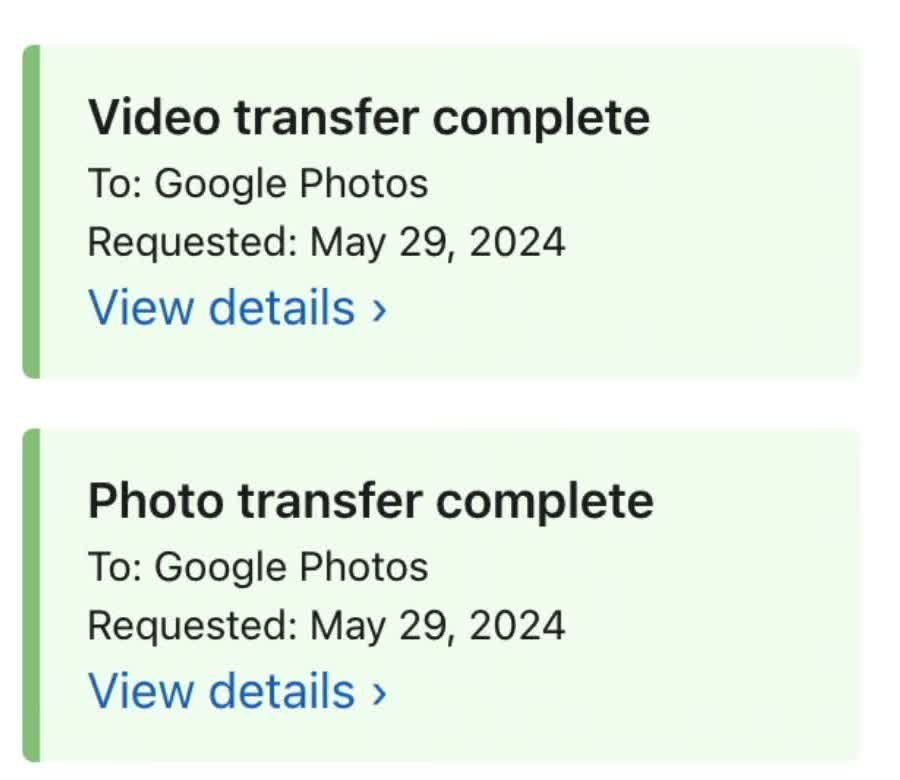
If you already use iCloud Photos and plan to move the older library, Apple’s copy-transfer service can transfer photos and videos to Google Photos from privacy.apple.com. It makes a copy; it does not delete the originals in iCloud. Apple says the transfer typically takes three to seven days, and some items, including shared albums and some Live Photos or RAW content, may not transfer as expected. Check Apple’s current exclusions and compare the libraries afterward.
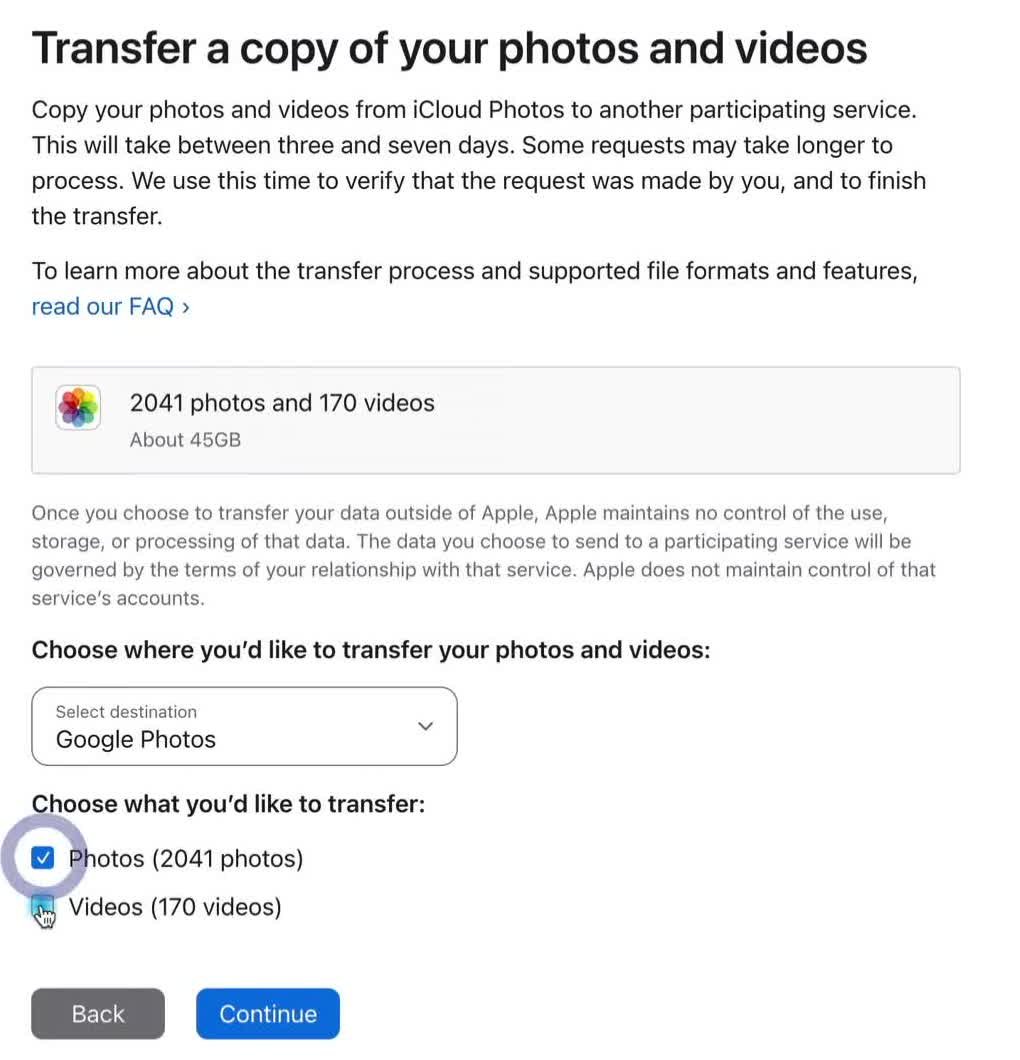
The completed status in my video is a useful checkpoint, but I still compared the first and last images in both libraries and backed up any new iPhone photos taken during the transfer. Do the same, then review albums and file types you particularly need.
Use Google Photos to remove backed-up device copies
Once backup is complete and you understand what iCloud will do, open Google Photos → profile picture → Free up space on this device. Review the count and confirm the device removal. Google’s iPhone instructions say the removed items remain available in Google Photos and on photos.google.com, but they will no longer be in Apple Photos or available offline unless you download them again.
For the iPhone to actually reclaim the space, Google says you must also open Apple Photos → Recently Deleted and permanently remove those items. This is the point where recovery through Apple’s Recently Deleted album ends. Verify the Google copies and any other backup before emptying it. Google Photos may only offer backed-up items that meet its eligibility rules, so the available count may be lower than your entire camera roll.
If iCloud Photos is still enabled: changes to the Apple Photos library can sync to iCloud and other Apple devices. Do not assume “Free up space” leaves an untouched iCloud library. If keeping iCloud intact is your goal, use Apple’s Optimize iPhone Storage route instead. Apple’s iCloud Photos guidance explains that deleting from Apple Photos deletes the synced copy everywhere.
Do not tap the ordinary Trash button inside Google Photos as a substitute for Free up space. Google’s delete guidance says deleting in Google Photos can remove the cloud copy and backed-up device copies too. Check which action is on screen before confirming.
Check the result and keep new photos backed up
Open Settings → General → iPhone Storage to see whether Photos storage has fallen; allow time for the number to refresh. Open Google Photos on another device or the web to confirm that important photos remain accessible. Remember that a cloud-only photo may need a connection; download selected favorites to the iPhone if you need them offline.
Leave Google Photos Backup on for new shots, and confirm its status before the next cleanup. If you are moving away from iCloud Photos entirely, make that a separate decision after auditing your library and backup. My video shows what I chose for my own account; it is not necessary to select Turn Off and Delete from iCloud to reclaim iPhone storage.
If your bigger problem is finding space for your photo library on a Mac, my guide to finding large files and Smart Folders walkthrough can help you review local files without deleting them blindly.