If you know part of a file’s name, press Command–Space, type it in Spotlight, and open the result. If that returns too much or nothing at all, switch to Finder and narrow the search by folder, file kind, date, or size. Before deleting a file you find, confirm its location and whether it is a system or app file.
The video shows macOS as it looked in 2023. Finder’s search controls remain the useful part of the lesson; the exact Spotlight layout and Settings labels can differ on a newer Mac. The steps below follow Apple’s current Finder search guidance.
Start with Spotlight when you know the name
- Press Command–Space and enter a filename, a distinctive word in a document, or a file type such as
kind:pdf. On newer versions of macOS, Spotlight may also offer a Files browse mode. - Use the arrow keys to inspect results. Press Return to open one. To find a selected result’s location in Finder, press Command–R or Command-double-click the result; Apple documents these Spotlight shortcuts.
- If too many different kinds of results appear, add a kind term such as
kind:imagesorkind:pdf, or continue the search in Finder.
Spotlight is the fast route to a known file. Finder is better when you only remember clues, such as “a PDF I made last month in Documents.”
Narrow a Finder search by folder and file details
- Open Finder. To search everywhere, enter a term in the upper-right search field and press Return. To start in one folder, open that folder first, then search.
- Look at the scope buttons above the results. Choose This Mac for a computer-wide search or the folder name to search only within that folder. Starting in Documents does not always mean Finder has chosen Documents as the search scope.
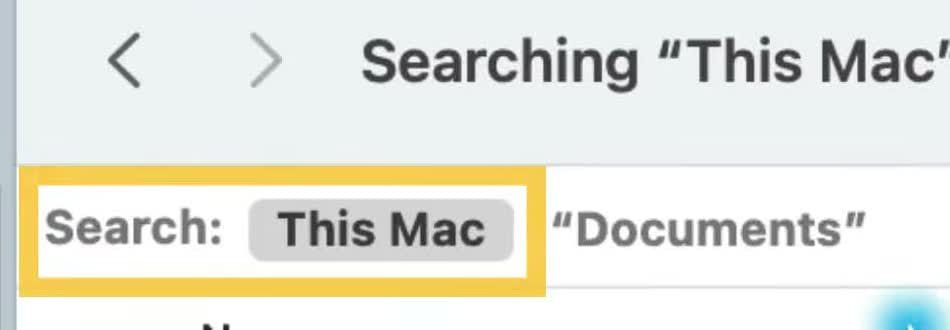
- Click the + button under the search field to add a condition. Choose Kind, Name, Created date, or Last modified date, then set the value. Add another condition with + if you need to narrow the result further. A file must match all the conditions you add.
- For less common criteria, open the first condition menu and choose Other. You can add File Extension or File Size to the menu. For example, a search for
invoiceplus File Extensionpdfand a recent date can be much easier to review than a broad search forinvoicealone.
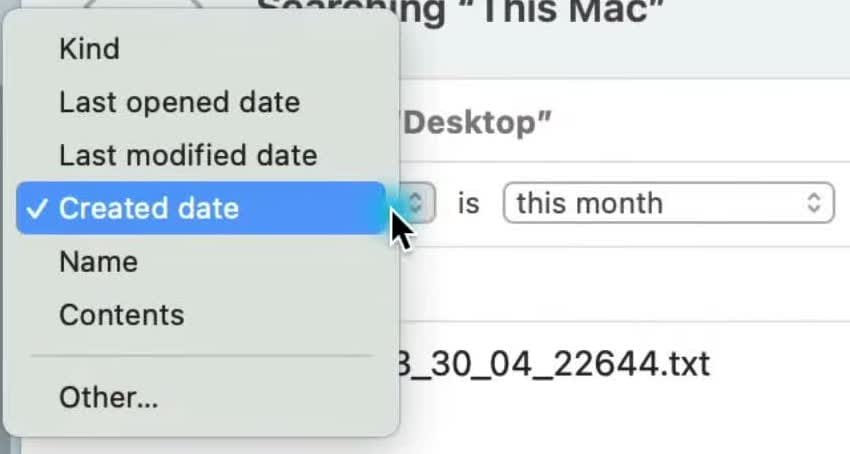
Use the Kind condition for a broad type such as PDF or image. Use File Extension when you need an exact suffix. My video demonstrates both the date and extension routes, plus the Other list of attributes.
See where the file lives and save a useful search
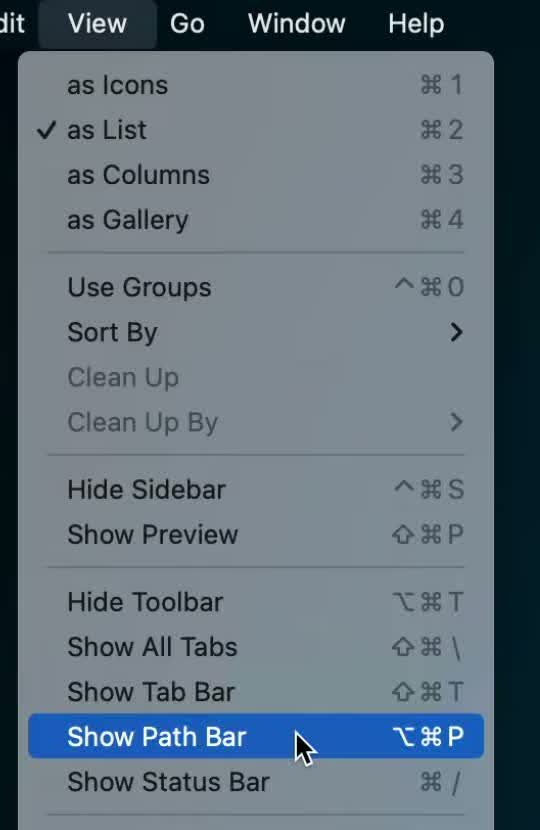
Once you find a result, open its containing folder before moving or deleting anything. In Finder, choose View → Show Path Bar. The bar at the bottom shows the selected file’s folder path; you can move up through its parent folders from there. My full Finder path guide covers that view in more detail.
If you repeatedly search for the same type of file, click Save in the Finder search window. That creates a Smart Folder whose results update as files change; it does not move the files. See the macOS Smart Folders guide for the full setup.
Find large or hidden files
For a storage cleanup, open Apple menu → System Settings → General → Storage and review the categories and file list before using Show in Finder or deleting anything. The video begins with this route. If size is the main problem, the guide to finding large files on a Mac is more focused.
To reveal hidden items in the current Finder window, press Command–Shift–Period (.). Press it again to hide them. Hidden files often belong to macOS or an app; finding one is not a reason to edit or delete it. Show Package Contents on an application likewise exposes internal files, not a normal folder to clean casually.
If a file you know exists is still missing from Spotlight results, first check the folder in Finder and any connected or cloud drive. A stale Spotlight index is another possibility; use Apple’s indexing guidance before rebuilding an index. For broader orientation around Finder and macOS, start with the Mac beginner guide.