An Intel Mac that still handles your work does not need to be replaced just because a new macOS has arrived. Start with five checks: security updates, app support, actual performance, repair value, and any Intel-only workflow you still need. If one check fails, find out whether a practical fix changes the answer.
I recorded the video in August 2026, before macOS 27 Golden Gate launched. The launch has now happened: Apple’s macOS 27 compatibility list includes Apple silicon Macs and no Intel models. My 2020 Intel iMac can run macOS Tahoe 26, but not macOS 27. The video’s projected dates for future security support were estimates, not Apple end-of-support promises. Check Apple’s security releases for the exact version you use.
The quick decision
| Decision | When it fits |
|---|---|
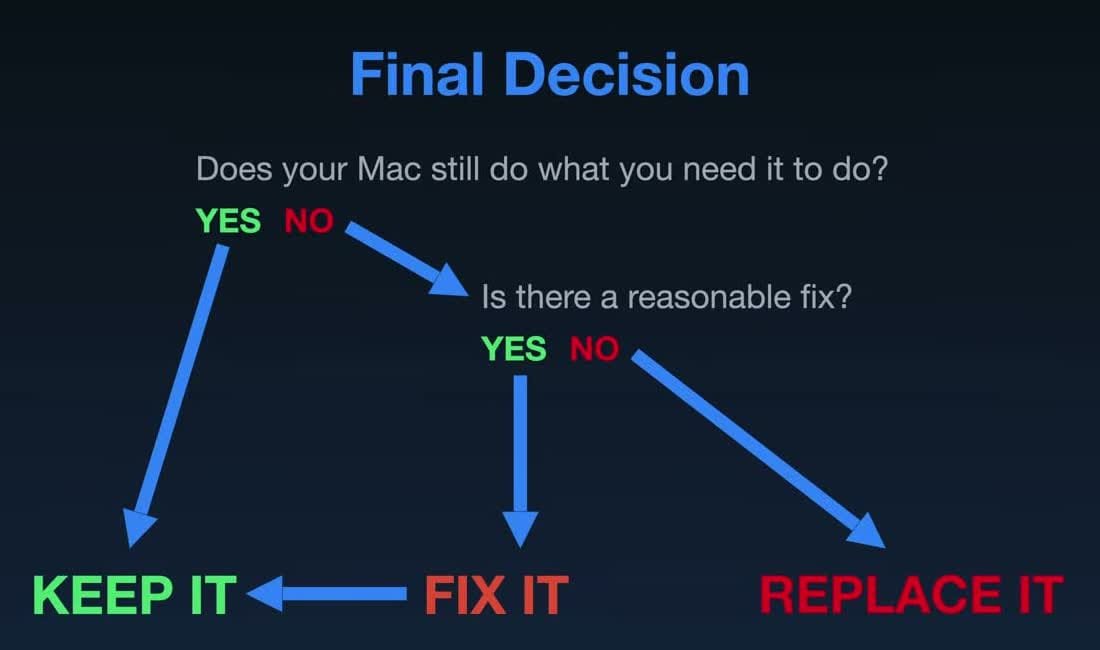
| Keep it | Your macOS version and critical apps still receive suitable updates, the Mac does your work reliably, and its limits do not block you. |
| Fix it | One defined problem—battery, cooling, storage, software, or another repair—has a reasonable cost and would return the Mac to useful service. |
| Replace it | Required software or security support is gone, the Mac cannot handle your workload after sensible troubleshooting, or the cost and risk of repair exceed the useful life you expect. |
1. Check security support, not just the newest macOS label
Choose Apple menu → About This Mac to identify the model and current macOS version. Compare your model with Apple’s Tahoe 26 compatibility list and its macOS 27 list. A Mac that cannot run 27 may still receive security updates on a supported older release; that is different from running a version for which Apple has stopped issuing routine fixes. Install available updates and check the release page periodically. Apple does not promise the same fix coverage on every older macOS version.
If your Mac is stuck on an older release, the macOS upgrade guide walks through the official upgrade path. Do not base a purchase decision on a predicted cutoff year from my video; Apple may change its release and patch schedule.
2. Check the apps your work depends on
Make a short list of the browser, office suite, creative apps, security software, and peripherals you actually use. Visit each developer’s system requirements and support page. An old version that still opens is not necessarily one that still receives security fixes or file-format updates. Confirm whether your next required app update supports your Mac’s newest available macOS.
Some Intel-specific work can justify keeping an Intel Mac as a secondary machine. Apple’s Boot Camp guidance, for example, applies to Intel Macs. If you rely on an existing Boot Camp setup, test how that task would work on a replacement before selling the old Mac. Also check whether the Windows version in that setup is still supported; Boot Camp alone is not a reason to keep using an unpatched operating system.
3. Diagnose slowness before calling the hardware obsolete
Check System Settings → General → Storage for a nearly full startup disk. Open Activity Monitor, select the CPU and Memory tabs, and look for one app or process that consistently consumes resources. Listen for unusually loud fans and check whether vents are blocked. My 2020 iMac felt painfully slow until I cleaned dust from the air intake; its performance returned without replacing it.
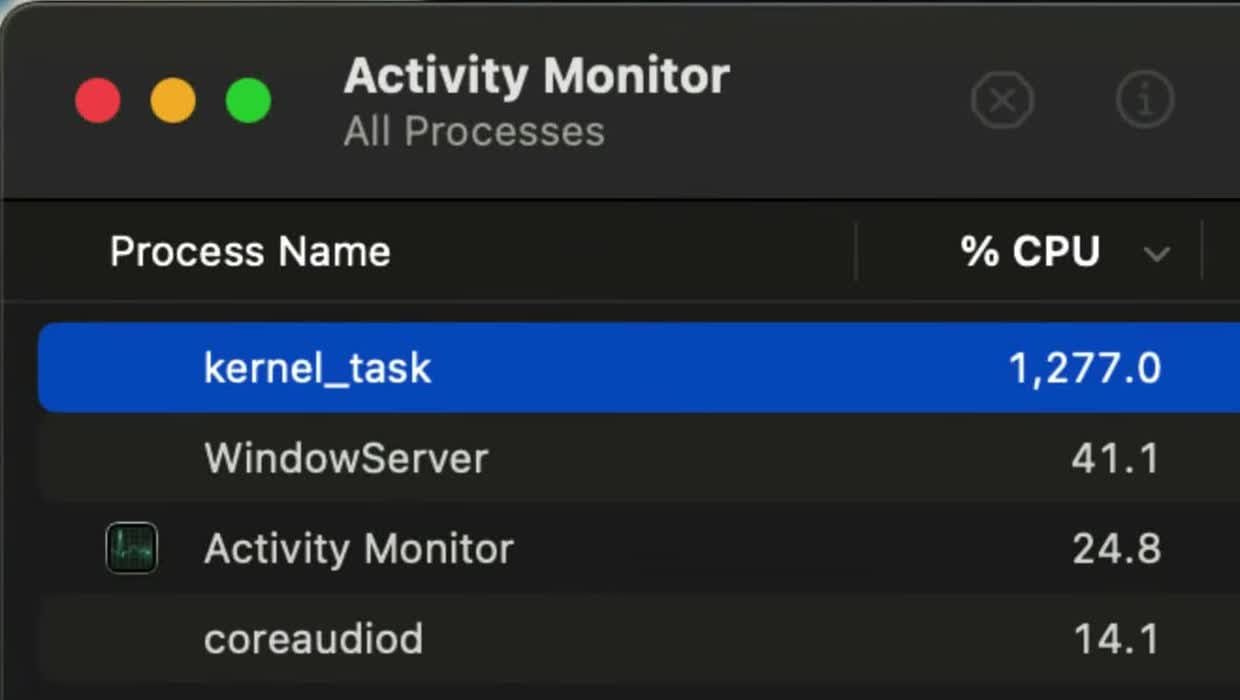
That frame shows the symptom I saw, not a universal diagnosis: high kernel_task can have different causes. If the Mac still misbehaves, run Apple Diagnostics. On an Intel Mac, shut it down, power it on, and hold D as it starts; Apple also documents Option–D if that does not work. Diagnostics can identify some hardware faults but does not test every software problem. Back up important files before major repair or system changes.
For a MacBook, check battery condition too. A serviceable battery can be a better investment than a replacement computer. My 2017 MacBook Air battery replacement guide shows one model-specific repair; if a battery is swollen or damaged, stop normal DIY handling and seek professional service.
4. Compare the repair with the life it buys you
Get a diagnosis and an actual repair quote before judging the expense. Compare that quote with a suitable replacement, the Mac’s software support, the condition of its other parts, and the time you expect to keep it. A modest battery or cooling repair that restores a reliable computer may be worthwhile. A costly logic-board repair on a machine with no workable app or security path often is not.
Apple’s vintage and obsolete product policy uses the date a model was last distributed for sale: a product becomes vintage after more than five years and obsolete after more than seven. Service for vintage models depends on parts availability; normal Apple hardware service for obsolete products generally ends, with stated exceptions. The date you bought your particular Mac is not the clock. Independent repair may remain possible, so get a quote rather than assuming the machine is unfixable.
5. Treat OpenCore Legacy Patcher as a deliberate tradeoff
My 2013 MacBook Pro runs an unsupported macOS through OpenCore Legacy Patcher (OCLP), and the Sequoia installation walkthrough shows that experiment. OCLP can give a capable old Mac more useful time, but it does not turn the model into an officially supported Mac. Hardware features, updates, and security settings may need extra work; a macOS patch arriving does not guarantee that OCLP supports it on your exact model. Check the project’s current model list, keep a full backup, and test important apps before relying on it for primary work.
For a main computer where predictable security updates and minimal downtime matter, that maintenance cost may outweigh the extra life. My unsupported Tahoe guide and unsupported Sequoia guide go deeper into the process.
My decision: I keep the 2020 iMac because it still produces my work and receives Tahoe updates. I fixed the 2013 MacBook Pro’s software limitation with OCLP for the tasks I use it for, while accepting its tradeoffs. Apply the same five checks to your own model. Replace it when a real requirement fails and a reasonable fix no longer restores it—not because the processor label says Intel.