Removing a pile of dust from my 2020 iMac turned it back into a fast machine — and I think it may have saved its life. The tool that finally did the job was a piece of paper. If your iMac freezes during heavy work, feels hot in the middle of the screen, and has its fan running flat out, check the intake vents before you think about replacing it.
My Mac: iMac (Retina 5K, 27-inch, 2020), model iMac20,2. Temperatures were read with the free Macs Fan Control 1.5.18.
Shut the iMac down and unplug everything before you clean the vents. Don’t push anything metal or sharp into them. And don’t open the iMac unless you’re prepared to: getting inside means removing the display with suction cups, and I saw more than one Apple Store Genius crack a display doing exactly that. That’s a last resort.
The symptoms: kernel_task and a fan at full blast
For a few weeks, my iMac would freeze up and slow down badly whenever I did something CPU-intensive, like editing video. In Activity Monitor, a process called kernel_task was using over 1,000% of my CPU.
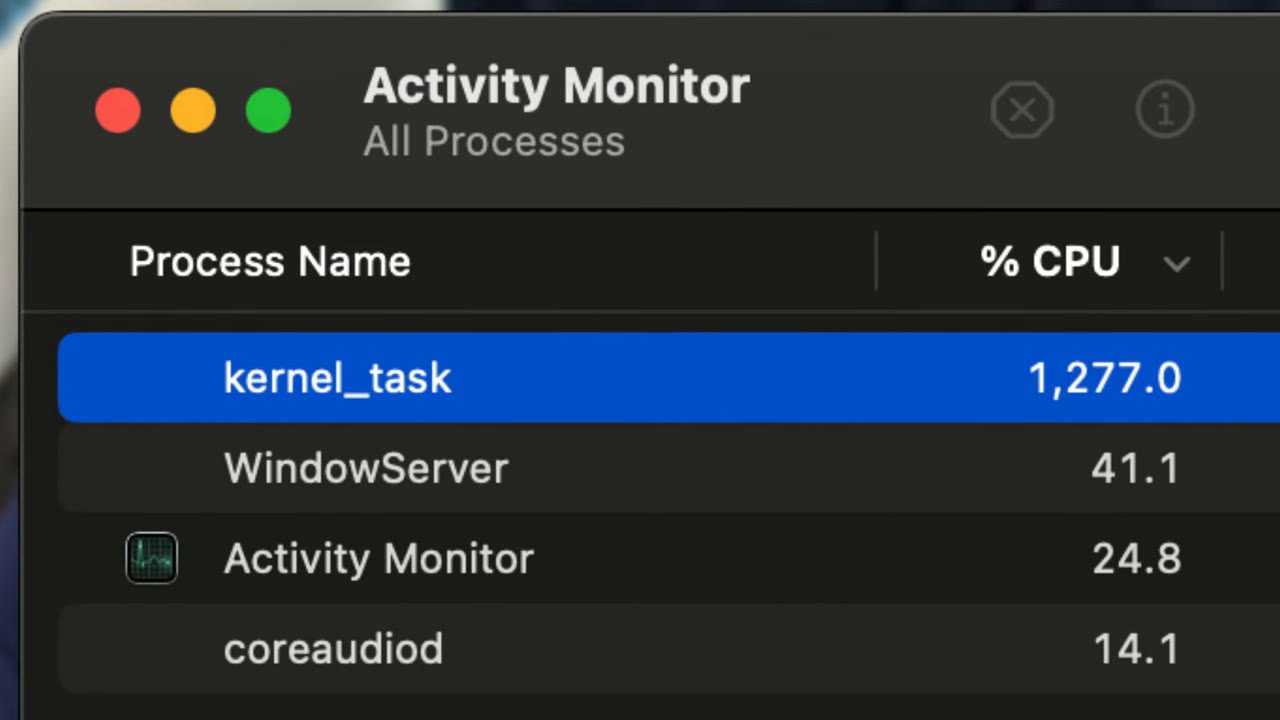
kernel_task isn’t a virus or a runaway app. It’s part of macOS, and one of its jobs is managing heat: Apple says it makes the CPU less available to processes that are using it intensely, to help bring the temperature down, and it backs off once things cool (Apple’s explanation). So a huge kernel_task number is usually a symptom — your Mac is throttling itself because it’s too hot.
Other signs were there too. The iMac felt hot to the touch, especially right in the middle of the display. To see what the fan was doing, I installed the free Macs Fan Control. The fan was running near its maximum a lot of the time, and the CPU was at 90°C or even hotter — the top of the range you’d want to see.
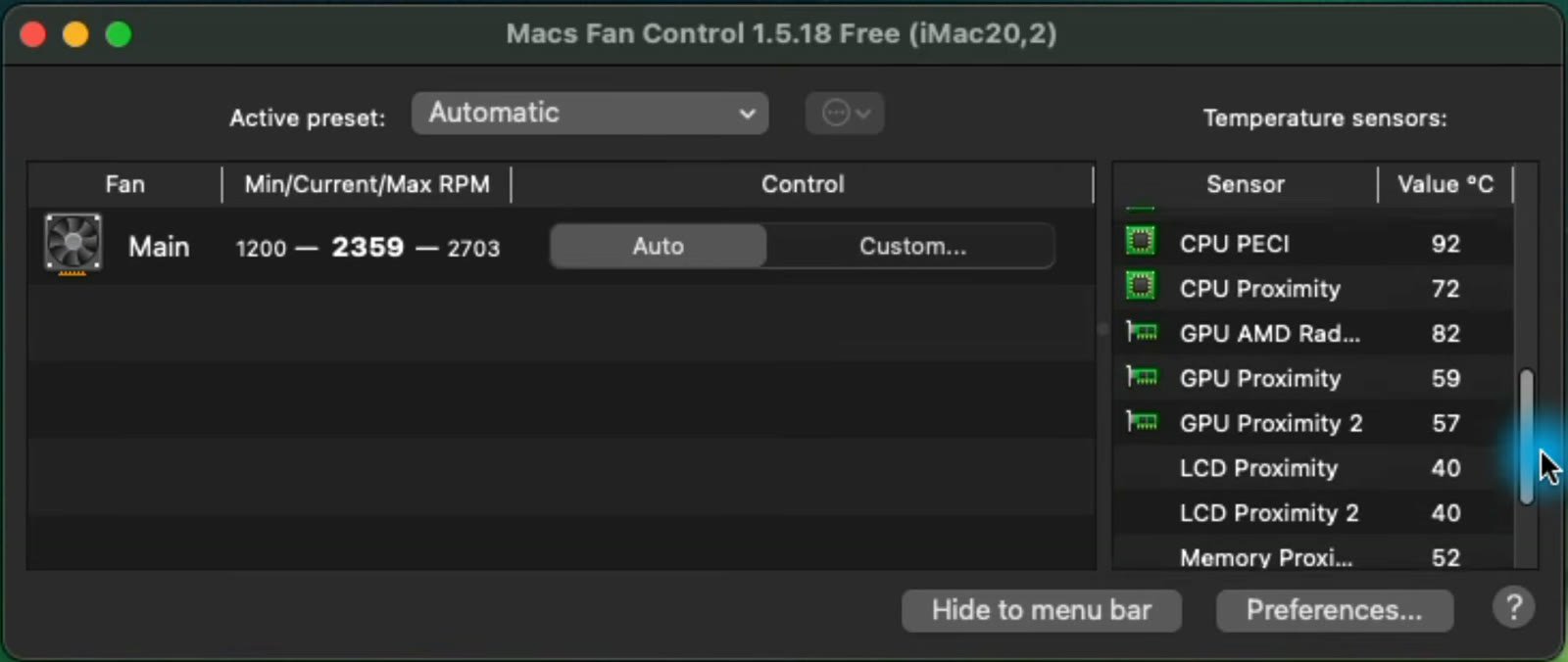
The fan was also really loud. At the time I took that as a good sign — at least it was working. After cleaning, I realized it was far too loud for this Mac.
Before blaming the hardware, I tried the basics: an SMC reset (Intel Macs only), software updates, and restarts. None of them helped. So it was time to look at airflow.
Where the vents are
I unplugged everything and laid the iMac face down on the desk in front of me. Two places to check:
- The exhaust vent, in the middle of the back, right behind the stand. Mine had a little debris, but nothing a brush couldn’t handle.
- The intake vents, running along the bottom edge of the display. This is where I found the problem.
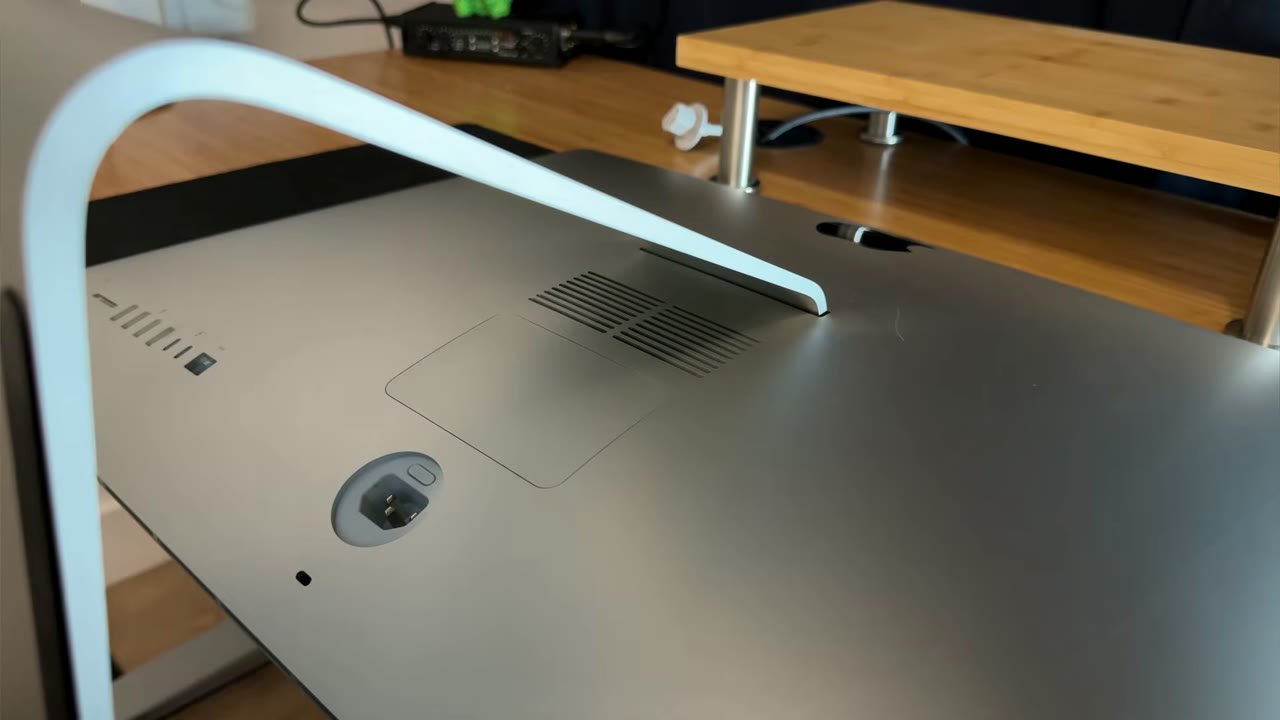
My intake vents were stuffed with dust, so caked in that at first it looked like weather stripping rather than debris. I couldn’t even see the mesh grid behind the slots.
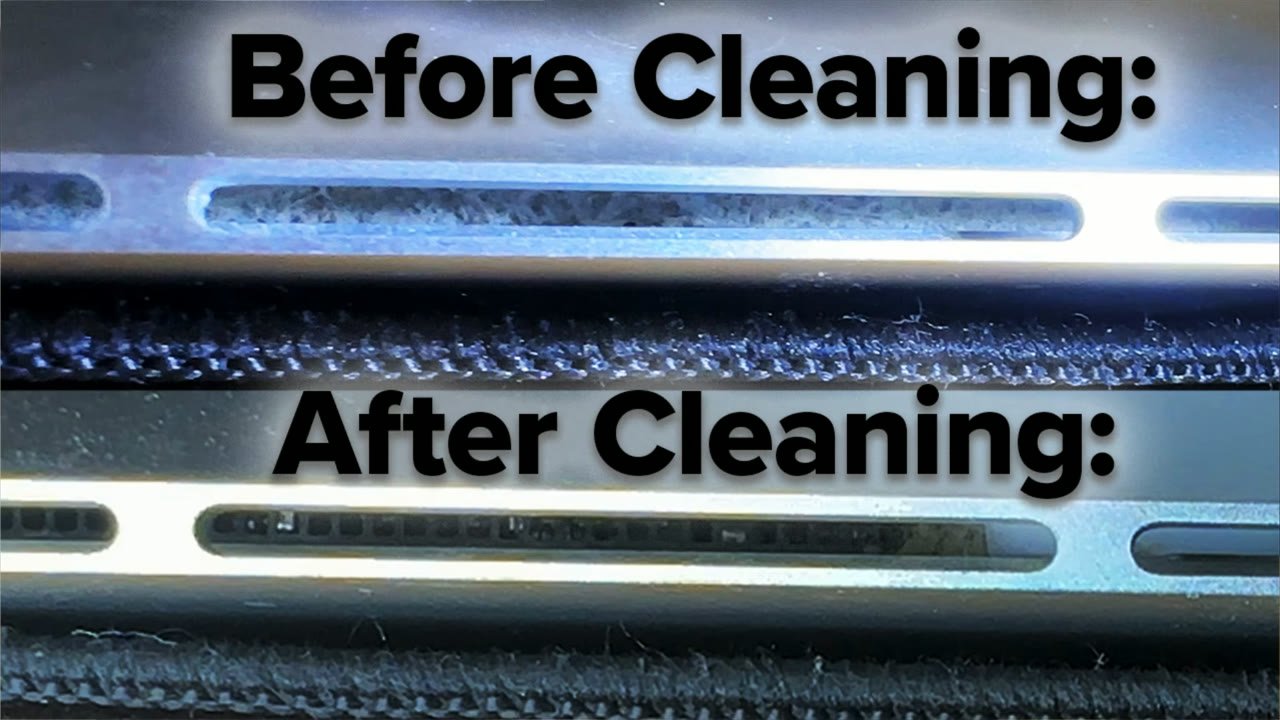
Clean the intake vents with a piece of paper
Here’s what I tried, in order:
- A long brush. Not long enough to reach the debris.
- A handheld blower. It didn’t shift it.
- A cotton swab with the cotton removed, then a toothpick. Both too thick to fit in the slots.
- A piece of paper. This worked.
Tear a strip of paper and fold it a few times so it’s rigid but thin. With a flashlight shining into the slots, slide the paper in and work the debris loose. The intake is actually one long vent split up by small plastic dividers, so you can push the dust along from one section toward the next and out.

I used the paper together with the brush and a vacuum to pick up everything I loosened. Look at what came out:
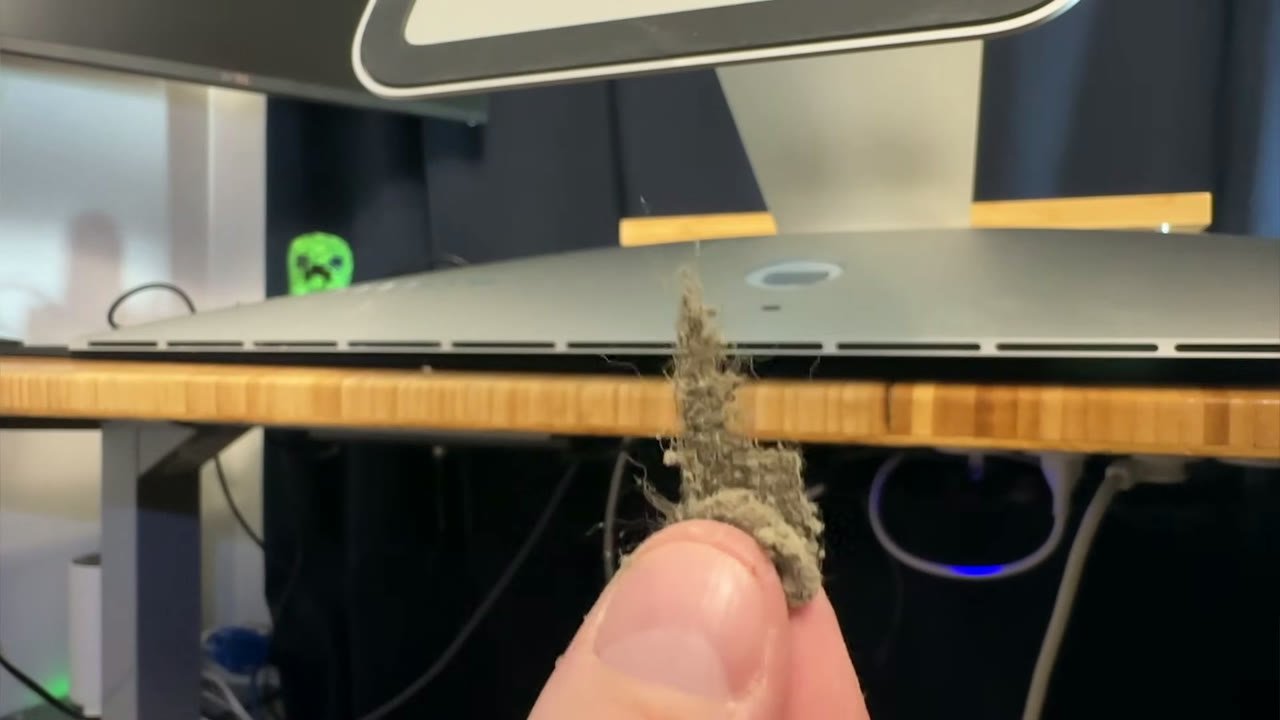
When I shone the flashlight in afterwards, I could finally see the mesh holes you’re supposed to be able to see.
The results
- No more freezing, even during intensive tasks.
- Not hot to the touch anymore.
- The fans are silent. Even when I’m exporting video, and even when Macs Fan Control shows the fan at full speed, I don’t hear it. Hearing it so clearly before was the sign it needed cleaning.
- CPU temperatures consistently 5–10°C cooler in Macs Fan Control than before.
I really think this computer was about to bite the dust. Down the road, I may still have to open it up and clean it properly inside, but because it’s working so much better, I’m leaving it alone for now.
If cleaning doesn’t fix it
High kernel_task doesn’t always mean dust. If your vents are clean and the Mac is still hot and slow:
- Open Activity Monitor, sort by % CPU, and look for an app or process that’s working hard — that’s what Apple suggests checking first.
- Make sure nothing is blocking the vents where the iMac sits.
- Run Apple Diagnostics to check the hardware.
- If you’re deciding whether an older Mac is worth more effort, my keep, fix, or replace an Intel Mac guide walks through it.
If you’re comfortable going further on a MacBook, I replaced the battery in a 2017 MacBook Air and cleaned out the dust inside while it was open.