If you’ve been meaning to use ChatGPT to save time, write faster, learn new skills, or get unstuck on everyday tasks, this guide is for you.
This page is the expanded text version of my beginner video (embedded at the top). Use this text version to scan quickly, copy/paste prompts, and get consistent results.
Use this page with the video
- Watch first (fastest way to understand the workflow).
- Then use the copy boxes below for repeatable prompts and settings.
- Save your best prompts so you don’t rebuild from scratch every time.
Quick Start
- Go to chatgpt.com and sign in (or create an account).
- Click New chat and type what you want in the message box.
- If the result isn’t right, reply in the same chat with what to change.
The prompt formula that gets better results
ChatGPT is easiest to use when you stop “asking questions” and start giving it inputs. The less it has to guess, the more consistent your results become.
These are the six inputs I use most often:

One line that upgrades almost any prompt
If you don’t know what details matter, use this so ChatGPT asks before it answers:
Before you answer, ask me 5 questions to clarify what you need.Copy/paste prompt template
This is the template I recommend saving to your prompt library. It forces clarity without overcomplicating things. For an official reference on getting better results, OpenAI’s guide is worth bookmarking: Prompt engineering best practices.
Task: [What you want done]

Context: [Why you need it + audience + goal]

Example (optional): [Paste a sample output you like OR describe the style]

Persona: Act as a [role / expert].

Format: [Steps / table / outline / script / etc.]

Tone: [calm / direct / friendly / formal / etc.]

Constraints: [word limit, must include, must avoid, assumptions to make/avoid]
If you want a big set of ready-to-use prompts (already written and optimized), use my curated list here: Free AI Prompts for Professionals.
Custom Instructions
If you keep repeating the same preferences (tone, structure, what you do for work), set up Custom Instructions so new chats start closer to what you want.

Starter Custom Instructions
Edit this to fit your workflow, then paste into Custom Instructions:
When you respond:
- Use concise, simple wording.
- Tell me if I may be missing something important (even if I didn’t ask).
- Prefer step-by-step instructions with short examples.
- If my request is vague, ask up to 3 clarifying questions before answering.
- When there are tradeoffs, list them clearly and recommend the best option for my situation.
If the UI changes (it does), OpenAI’s Help Center is the best starting point to find the latest settings paths: OpenAI Help Center.
Free vs Plus vs Pro
Older tutorials often mention “ChatGPT 3.5” and “ChatGPT 4.” The interface and plan details change over time, but the upgrade decision is still simple: start free, then upgrade only when you hit limits or need specific tools.

Upgrade trigger: If you’re regularly blocked by usage limits, need advanced tools, or want more consistent performance for work, upgrading usually pays for itself in saved time.
How to iterate for better answers
Most strong results come from iteration in the same chat. Don’t restart immediately. Tell it what’s wrong, add the missing constraint, then have it revise.
Copy/paste iteration prompts
Make it shorter and more direct. Keep the same structure.

That’s too advanced. Explain it like I’m brand new.

Rewrite this as a checklist with clear steps.

Give 3 options: simple, balanced, and advanced.

Ask clarifying questions before you answer.
Power move: make ChatGPT write your reusable prompt
Create a reusable prompt that would produce the best result we arrived at.
Make it copy/paste friendly, with brackets for anything I should fill in next time.
Memory vs blank slate
Sometimes you want personalization (stable preferences remembered). Other times you want a clean slate. ChatGPT’s Memory is optional and can be managed or turned off. For the official explanation of what Memory is and what the controls do, see: Memory and new controls overview.
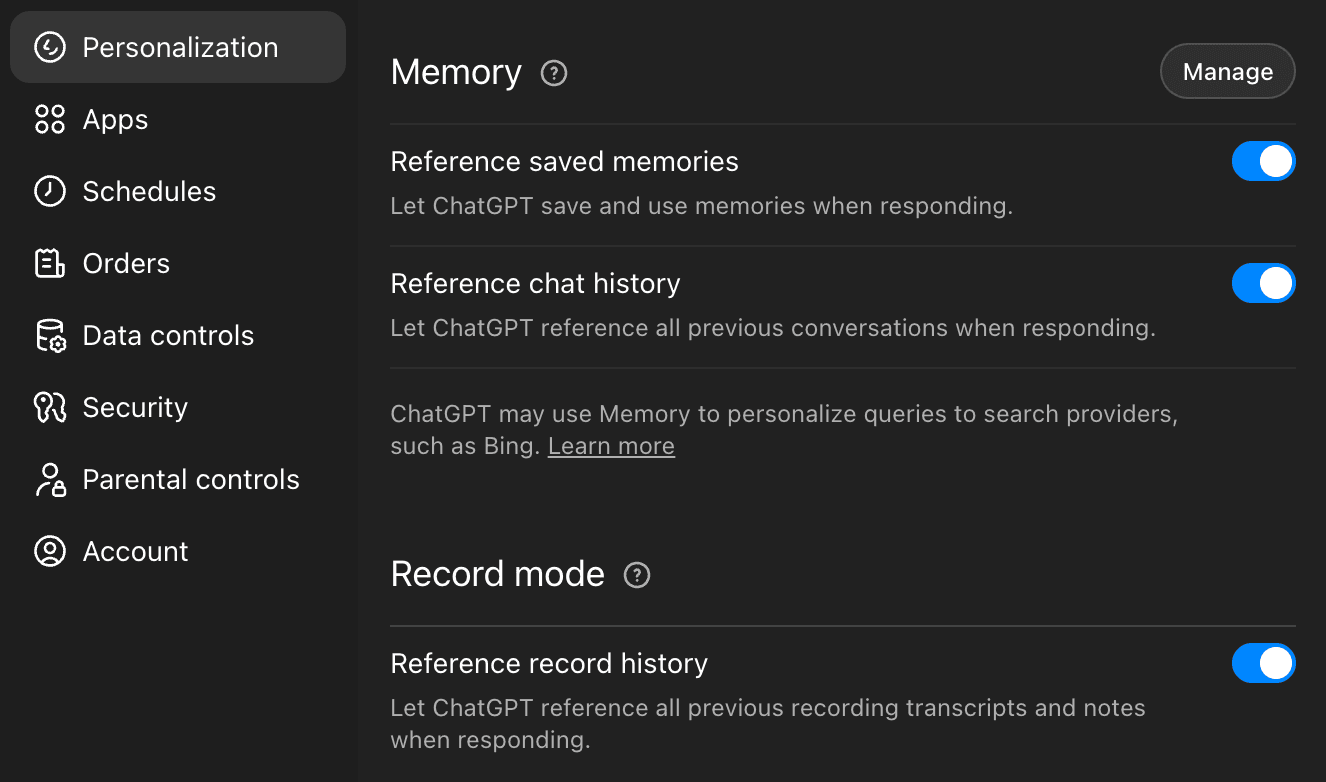
If you want a reliable blank-slate workflow, use an incognito or signed-out session for one-off work, or delete the chat when you’re done.
Blank-slate workflow
- Incognito or signed-out: clean session.
- New chat then delete: best practical “clean slate” for most people.
- Turn Memory off: prevents “personalization drift” across future chats.
Privacy and Data Controls
Two rules prevent most beginner mistakes:
- Never paste sensitive identifiers (passwords, SSNs, full account numbers).
- For anything high-stakes (medical, legal, financial), use ChatGPT to understand and draft—but verify with primary sources.
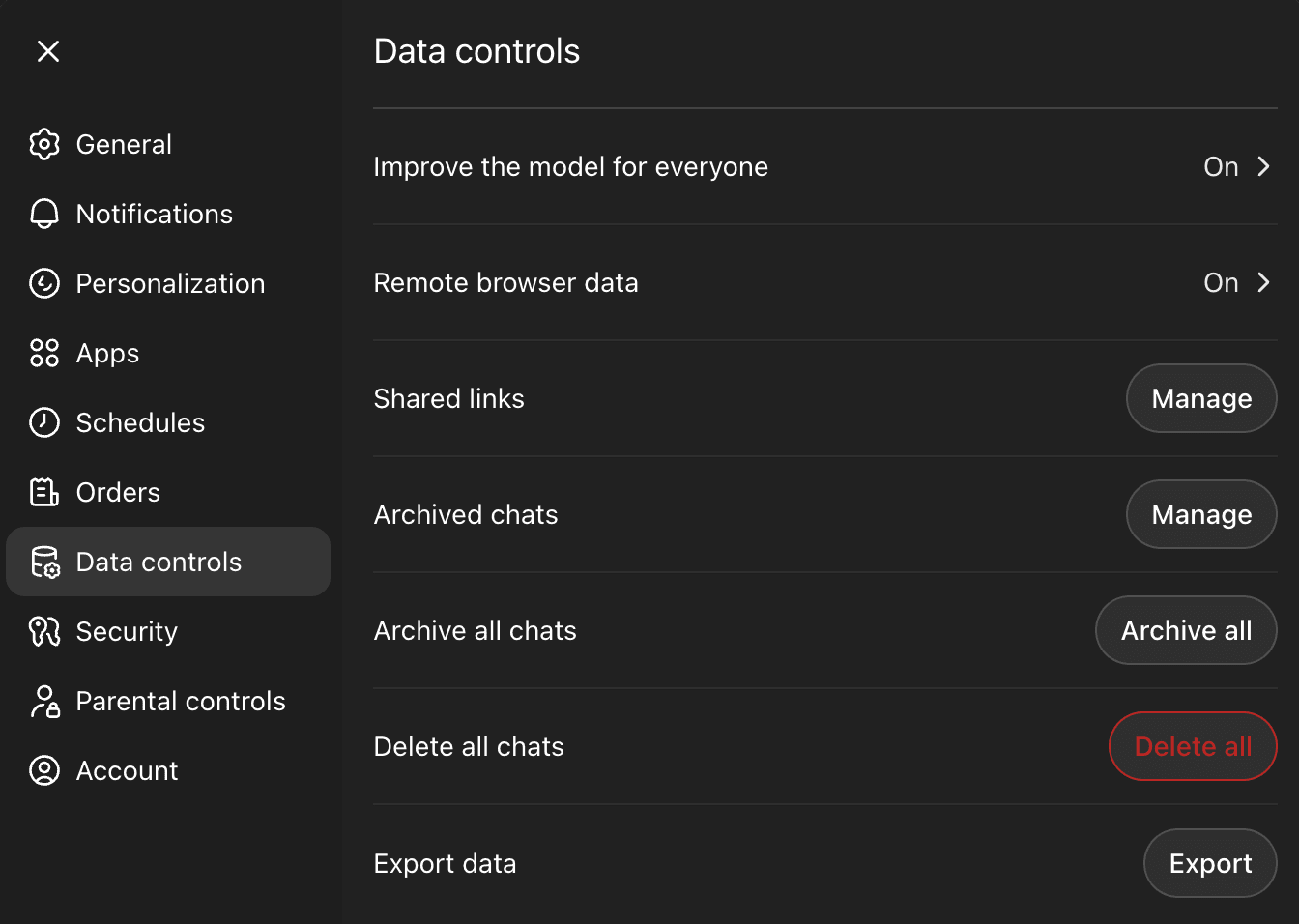
If you want to prevent your chats from being used to improve the model, use Settings → Data Controls and turn off “Improve the model for everyone.” OpenAI’s official explanation is here: Data Controls FAQ.
If you want a clean long-term organization workflow, Projects can help keep related chats and files together.
Prompt library
Chat sessions can get messy. A prompt library prevents you from rebuilding your best work from scratch. If you want a proven starting point with lots of prompts you can steal and adapt, start here: Free AI Prompts for Professionals.
- Create a doc (Notion / Google Doc / Notes) titled Prompt Library.
- Add categories: Work, Personal, Writing, Planning, Technical.
- When you get a great outcome, save the final reusable prompt (not the whole conversation).
A clean way to name saved prompts
[Goal] — [Audience] — [Format]
Example: Weekly content plan — solo creator — table
Frequently Asked Questions
Yes. There’s a free plan. Paid plans mainly increase usage limits and may unlock additional features and tools depending on what OpenAI is currently offering.
Assume it can be wrong. Tell it what’s wrong, add missing details, and ask it to revise. For high-stakes topics, use it for understanding and drafting—then verify with reliable sources.
Yes, if Memory is enabled. You can manage or disable Memory in settings. For the official explanation of what Memory does, see: Memory and new controls overview.
Some accounts no longer show a per-chat Temporary Chat toggle. Use a blank-slate workflow instead: incognito/signed-out sessions, or delete one-off chats after you’re done.
No. Prompt clarity matters more than plan tier. Upgrade when you hit limits, need specific tools, or rely on ChatGPT daily for work.
Next steps
- Pick one real task you’ll do this week (email, plan, outline, checklist).
- Use the prompt template once.
- Iterate one time using the iteration prompts above.
- Ask ChatGPT to write the reusable prompt, then save it to your prompt library.
Want more “ready-to-run” prompts you can copy/paste immediately? Start here: Free AI Prompts for Professionals.