If you’re trying to download all of your Google Drive files at once, the “best” method depends on what you mean by all:
- Want a true backup (everything you own in Drive)? Use Google Takeout.
- Only need a handful of folders/files right now? Download directly from Google Drive.
- Want everything available offline long-term (sync behavior)? Use Google Drive for desktop.
This guide walks you through each method, when to use it, and the common issues that make people think Drive “won’t download everything.”
Table of Contents
- How to choose the best method
- Method 1: Download everything with Google Takeout (best for complete export)
- Method 2: Download folders/files directly from Google Drive (fast for smaller batches)
- Method 3: Use Drive for desktop (best for offline access & long-term syncing)
- Important notes (Google Docs formats, shortcuts, shared files, missing items)
- Troubleshooting (large exports, zip issues, download failures)
- FAQ
How to choose the best method
If you pick the wrong approach, you’ll waste time. Here’s the simplest way to choose:
- Choose Google Takeout if you want the most complete download/export of your Drive contents in one process.
- Choose Drive web download if you only need a manageable number of items and you want it immediately.
- Choose Drive for desktop if your goal is ongoing offline access (not a one-time “single zip file” export).
Method 1: Download all Google Drive files at once with Google Takeout
Google Takeout is the most robust option when you truly want to download “everything,” especially if you have a lot of files. Takeout builds an export archive for you (often split into multiple .zip files if your Drive is large).
Steps (Google Takeout)
- Go to Google Takeout while signed into the Google account that owns the Drive files.
- Click Deselect all, then scroll and enable Drive only.
- Scroll down and click Next step.
- Choose your export settings (delivery method, file type, archive size) and click Create export.
- When it’s ready, click Download for each archive file.
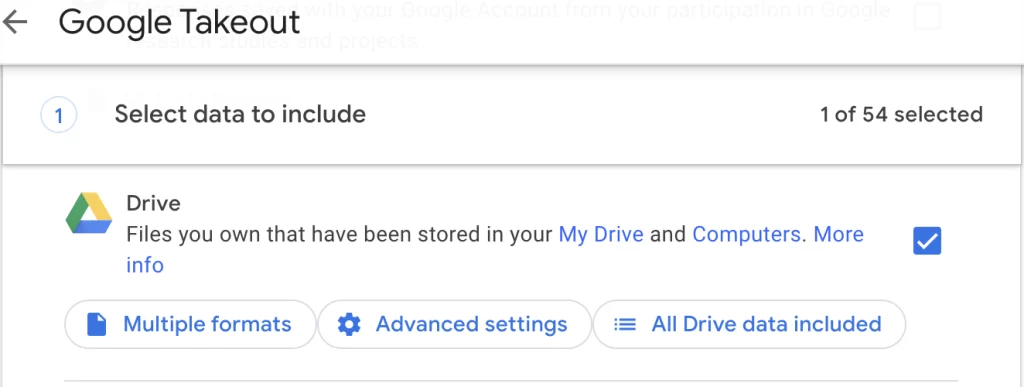
What to expect: If your Drive is large, Takeout may take hours (or longer) and may generate multiple archive files. That’s normal — it’s built for big exports.
When Takeout is the best choice
- You’re migrating away from Google Drive or backing up years of files.
- You have too many folders/files to reasonably select in the Drive web interface.
- You want a more complete “export” workflow instead of manual downloading.
Method 2: Download files/folders directly from Google Drive
If you only need a smaller batch of files (or a few folders), downloading directly from Google Drive is usually fastest. Google will download folders as a compressed .zip file.
Steps (Drive web)
- Go to drive.google.com.
- Select the files and/or folders you want (use Shift to select ranges, or Ctrl + A / Cmd + A to select visible items).
- Right-click and choose Download.
Google’s official help doc for downloading from Drive is here (useful if menus look different on your device):
Download a file or folder from Google Drive (Google Help)
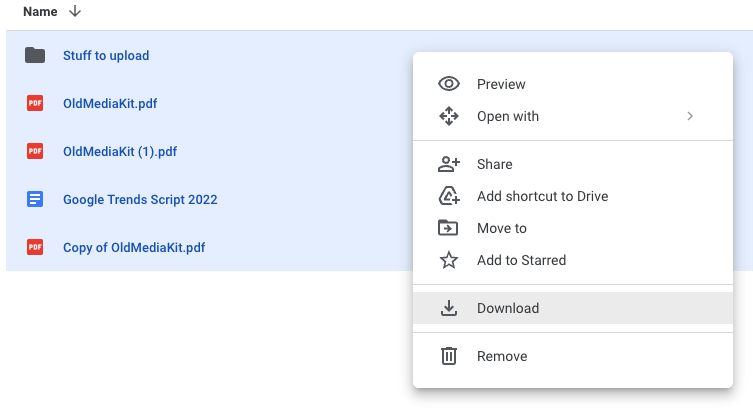
Limitations: This method can fall apart when you have a huge Drive. You may not be able to select everything at once (especially if Drive is loading items dynamically as you scroll).
Method 3: Use Google Drive for desktop to download/sync everything
Google Drive for desktop is best when your goal is to keep your Drive files available on your computer long-term. Instead of building one big export zip, it syncs your Drive to your system so files can be available offline (depending on your settings).
Google’s official overview for Drive for desktop is here:
Use Drive for desktop (Google Help)
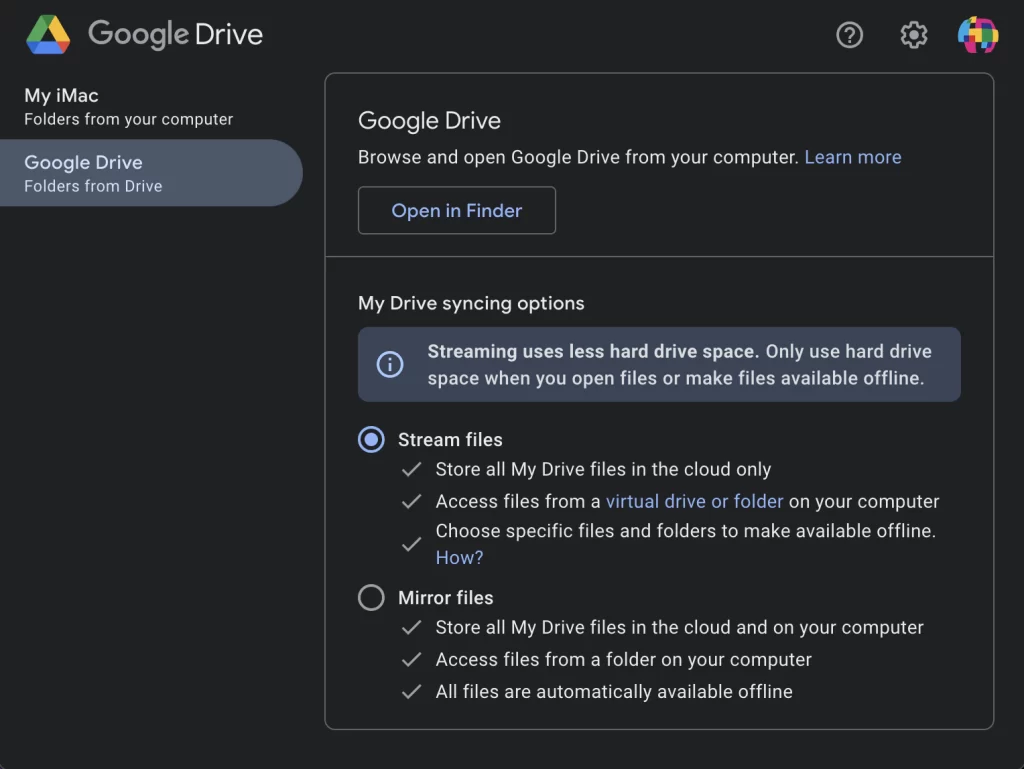
Important: This is not a “single-click export.” It’s a sync/offline workflow. If your goal is a one-time archive you can store elsewhere, Takeout is usually the cleaner solution.
Important notes
1) Google Docs/Sheets/Slides download as converted files
Files created in Google Docs editors (Docs, Sheets, Slides) aren’t “normal” files in the same way PDFs or JPGs are. When you download them, Google typically converts them to formats like .docx, .xlsx, .pptx, or PDF depending on the export method.
2) Shortcuts and shared items can behave differently
If you see a file in Drive that you don’t truly own (for example, it’s shared with you), it may not export the way you expect depending on permissions and how the file was shared. If you’re missing items after an export, check whether those items live in Shared with me or belong to another owner.
3) “No download” permissions override everything
Some shared files are intentionally restricted so you can view them but not download/copy them. If the owner disabled download permissions, no method in this guide can override that.
Troubleshooting: when “download all” fails
- The zip download stalls or fails: try smaller batches in Drive web, or switch to Takeout for large exports.
- Takeout export is taking forever: that’s common on large Drives. Let it complete, and watch for multiple archive parts.
- Missing files: confirm ownership/permissions, and check whether items are in “Shared with me” versus “My Drive.”
- Drive for desktop isn’t “downloading everything”: check your offline settings (sync behavior) and make sure files are actually marked available offline if needed.
FAQ
What is the fastest way to download everything from Google Drive?
If you truly mean “everything,” Google Takeout is usually the cleanest and most complete workflow. If you only need a smaller set of folders right now, Drive web download is faster.
Can I download my entire Drive as one single zip file?
Sometimes, but large exports are commonly split into multiple archive files for reliability. If you need “one file,” you can combine archives after downloading (but Takeout may still generate multiple parts).
Is it possible to add a “Download my entire Drive” button on a webpage?
Technically possible with Google sign-in + the Google Drive API, but it’s not practical for a simple tutorial page. It requires user authorization, careful permission handling, and usually a backend service to package and deliver large archives. For most people, Google Takeout and Drive for desktop are the intended solutions.
If you only need a one-time backup: use Takeout. If you want continuous offline access: use Drive for desktop. If you only need a few items: download directly in Drive.
More Google Drive and Docs guides
- what to do when Google Drive trash will not empty — clearing space when deleted files stay put
- deleting version history in Google Docs — trimming a document back to a single version
- changing margins in Google Docs — page setup for assignments and printing
- adding hanging indents in Google Docs — APA, MLA and Chicago citation formatting
- removing paragraph breaks in bulk — cleaning up pasted text
- copying a shared folder — when you need your own version of someone else's folder
- unsharing a file or folder — revoking access you granted earlier
- finding duplicate files in Google Drive — clearing space before you hit the storage limit
- sharing Drive files with people who have no Google account — getting a file to someone outside Google
- transferring ownership of a folder or document — handing a file over permanently rather than sharing it