There is no single button that moves a Google Drive from one account to another, and which method you can use depends entirely on what kind of accounts you are moving between. Pick the wrong one and you will either lose file ownership history or discover halfway through that Google blocks the transfer outright.
Can you transfer ownership between these accounts? If both are personal accounts, or both belong to the same work or school organization, yes — for files you own, Transfer ownership keeps the original file intact, including its links, comments, and version history. One important catch: transferring ownership of a folder does not automatically transfer ownership of the files inside it.
If you’re crossing between a personal account and a work or school account, no — Google blocks that in both directions, and you’ll need to copy the files instead, which costs you comments, version history, and any links you’d already shared.
Choose the right way to move your files
| Method | Best for | Keeps the original file? | Main limitation |
|---|---|---|---|
| Transfer ownership | Moving individual files you own to another compatible account | Yes — same file, same links | Personal → personal, or work/school within the same organization; recipient needs access first |
| Google Takeout | Moving everything, including to a different provider | No — you get copies | Slow, downloads as archives, re-upload is manual |
| Share and copy | A small batch of files or folder contents | No — creates new copies | Loses comments and version history |
| Drive for desktop | Large libraries of non-Google files | No — copies | Needs disk space and time; Google formats convert |
1. Transfer ownership — keep the original file
This is the only method here that changes ownership of the original file instead of creating a copy. Links keep working, comments and version history survive, and the file stops counting against your storage quota once the transfer finishes. For folders, remember that changing the folder owner does not change the owner of every file inside it.
- Share the file or folder with the destination account first — ownership cannot be transferred to someone who does not already have access.
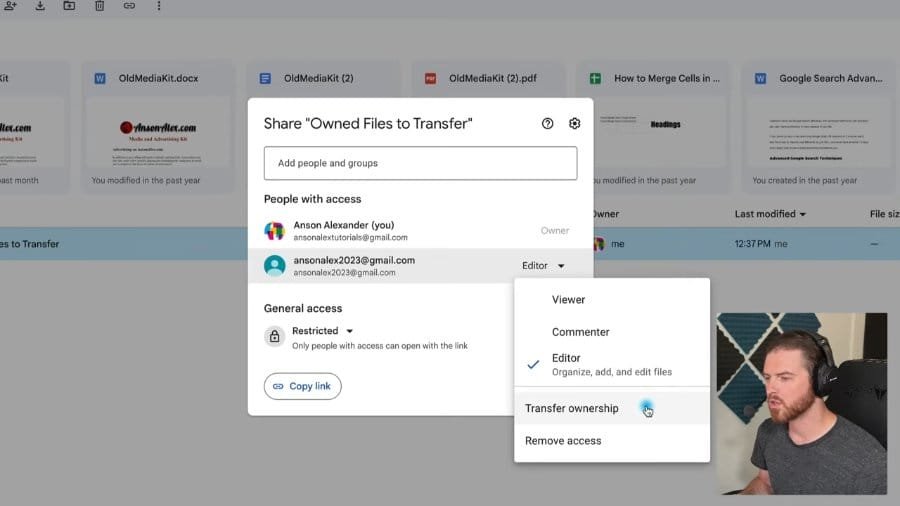
- Right-click the file in Drive and choose Share. In Docs, Sheets or Slides, use the Share button at the top right.
- Click the down arrow next to the recipient’s name.
- Choose Transfer ownership.
Google will ask you to confirm. Click Send Invitation, and you’re done on your end.
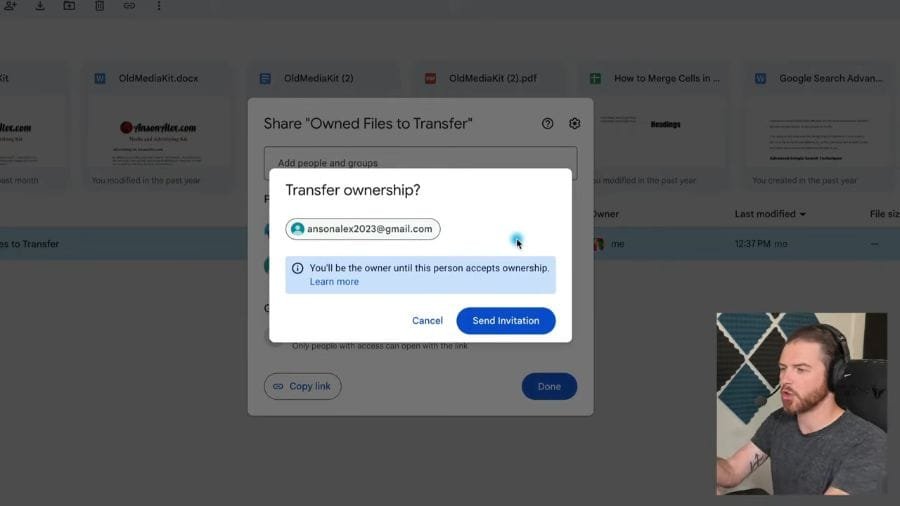
On personal Google accounts the new owner has to accept the request before it takes effect. On work or school accounts the transfer completes without acceptance. Either way, you are downgraded to Editor on your own file afterwards — you keep access, but you no longer control it.
If you’re moving files off a school account before you graduate, or off a work account before you leave the company, this is the moment that matters: personal and work/school accounts cannot transfer ownership to each other, in either direction. If that’s your situation, skip ahead to Takeout or a manual copy — this method won’t work for you.
For work and school accounts there is a second restriction: ownership can only be transferred to someone inside the same organization.
If you only need to hand over a single document rather than move a whole Drive, the narrower walkthrough in transferring ownership of a folder or document covers just that case.
2. Google Takeout — export a copy of your Drive
Takeout exports your data as downloadable archives. It works no matter what kind of accounts you’re moving between, which makes it the fallback when Transfer ownership isn’t available — and it’s the right call if you’re leaving Google entirely.
- Sign in to the old account and go to takeout.google.com.
- Click Deselect all, then select only Drive — exporting everything produces an enormous archive you do not need.
- Under Drive, choose which folders to include and what format Google formats should convert to. Docs become Word or PDF, Sheets become Excel, Slides become PowerPoint.
- Choose delivery — a download link by email, or delivery straight into Dropbox, OneDrive or Box.
- Wait. Google warns this can take hours or days for a large Drive.
- Download the archives, then upload the contents to the new account.
Be aware of what Takeout does not carry across: sharing permissions, comments, version history and ownership are all lost. You end up with files, not a Drive.
School accounts: check Transfer your content
If you are moving off a school account, check for Google’s Transfer your content tool before resorting to Takeout. It copies Gmail and Drive files you own into a personal account directly.
- Sign in to the school account and open the Transfer your content page.
- Enter the destination account’s address and select Get code.
- Open the confirmation email in the destination account and select Get confirmation code.
- Return to the transfer page, enter the code, and select Verify.
- Choose what to copy and select Start transfer.
Three things to know before you rely on this: the codes expire after 24 hours, the copy usually finishes within a few hours but can take up to a week, and the feature only exists if your school has turned it on. It also skips files you only have view access to, along with contacts, chats and tasks.
3. Share and copy — best for a small batch of files
Practical for a small batch of files, and often the fastest option when the two accounts cannot transfer ownership to each other. Google Drive cannot copy a folder as a folder, so nested folder structures take more manual work.
- From the old account, share the folder with the new account and grant Editor access.
- In Chrome, sign in to the new account at drive.google.com and open the shared folder.
- Select the files, right-click, and choose Make a copy.
- The copies are owned by the new account. Move them out of the shared folder into My Drive.
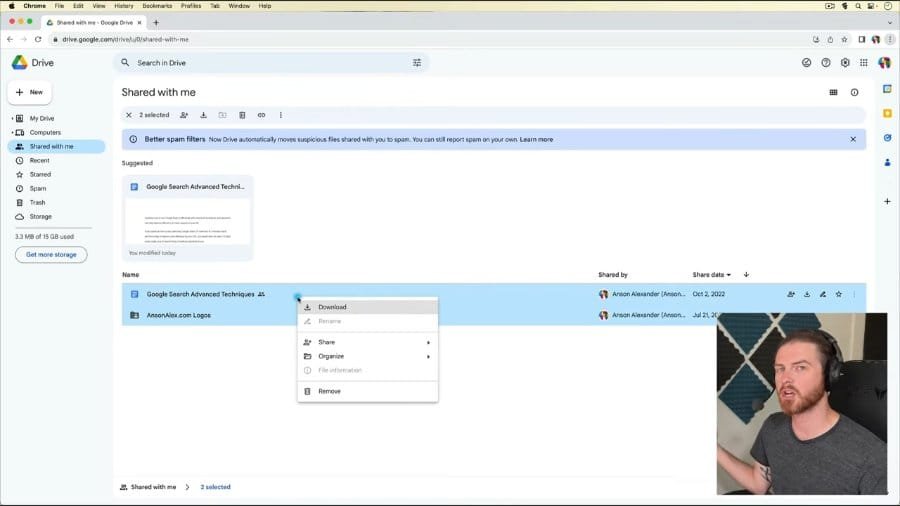
If you don’t see Make a copy, open the file on its own (not from a multi-select in Shared with me) and try again from there. Two other catches worth knowing: Drive will not let you copy a folder directly — only its contents, which means nested folder structures have to be rebuilt by hand — and every copy is a new file, so comments, version history and the original creation date do not come with it.
4. Drive for desktop — best for large file libraries
Best when you have a large library of ordinary files — photos, PDFs, video — rather than Google Docs.
- Install Google Drive for desktop and sign in to the old account.
- Set the relevant folders to Available offline so they download in full rather than streaming.
- Copy the files out to a local folder on your computer.
- Sign out, sign in as the new account, and copy the files back in.
You need enough free disk space for the files you make available offline. Google Docs, Sheets, and Slides are not ordinary local files in Drive for desktop — they open in the browser — so use Takeout or download/export those separately if you need portable copies.
Before you delete the old account
- Shared links. Anything you copied has a new file ID, so old links are dead. Links survive only with an ownership transfer.
- Sharing permissions. Copies start private — re-share them.
- Anything shared with you. It was never yours, so it does not move. Ask the owner to re-share it with the new account.
- Storage. Transferred files stop counting against the old account’s quota, but copies count against both until you delete the originals.
- The old account. Do not delete it until you have confirmed the new one has everything — deleting is permanent.