To merge cells in Google Sheets, select the cells, then click the Merge cells button in the toolbar (two arrows pointing toward each other). For more options, click the arrow next to it, or go to Format > Merge cells, and choose Merge all, Merge vertically or Merge horizontally.
This guide explains what each option does, why Sheets warns you before merging cells that contain data, how to build a centered heading across a table, how to unmerge, and when not to merge at all. It covers Google Sheets in a web browser, checked in November 2026.
- Select the cells you want to combine.
- Click Merge cells in the toolbar, or open its arrow to choose a merge type.
- To undo it later, select the merged cell and choose Unmerge from the same menu.
In this guide
- Merge cells from the toolbar · video 0:51
- Merge all, vertically or horizontally · 2:22
- Merging keeps only the top-left value · 1:03
- Create a heading across a table · 2:52
- Check whether cells are really merged · 0:26
- Unmerge cells
- When not to merge cells
Merge cells from the toolbar
- Click the first cell, then hold Shift and click the last one. Or click and drag across the cells.
- Click Merge cells in the toolbar. Its icon shows two arrows pointing toward each other.
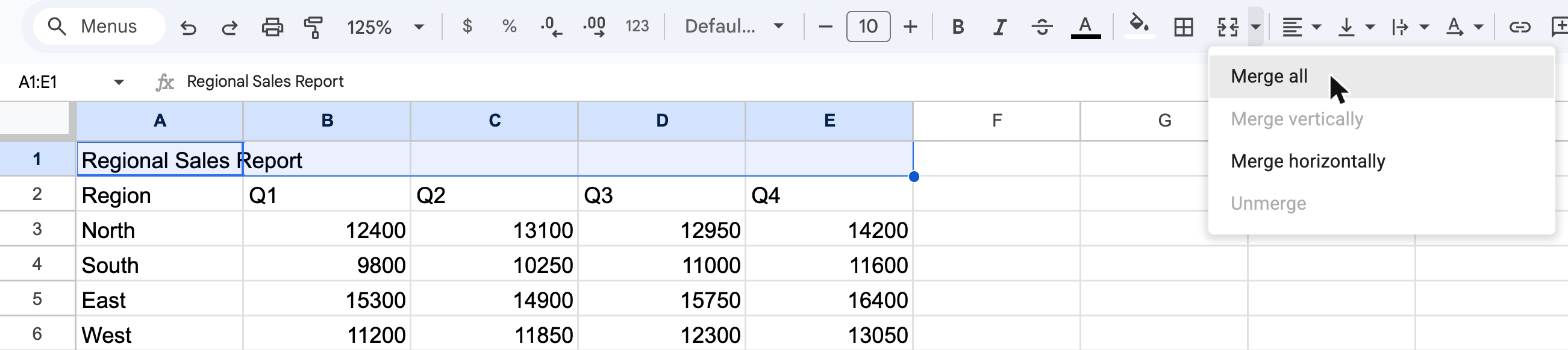
For a selection in a single row or a single column, the button is all you need: it merges the selection into one cell. The arrow beside it opens the full list, and options that don’t apply to your selection are greyed out.
Merge all, vertically or horizontally
The three options only differ when you select a block that spans more than one row and more than one column:
- Merge all combines the whole selection into one cell.
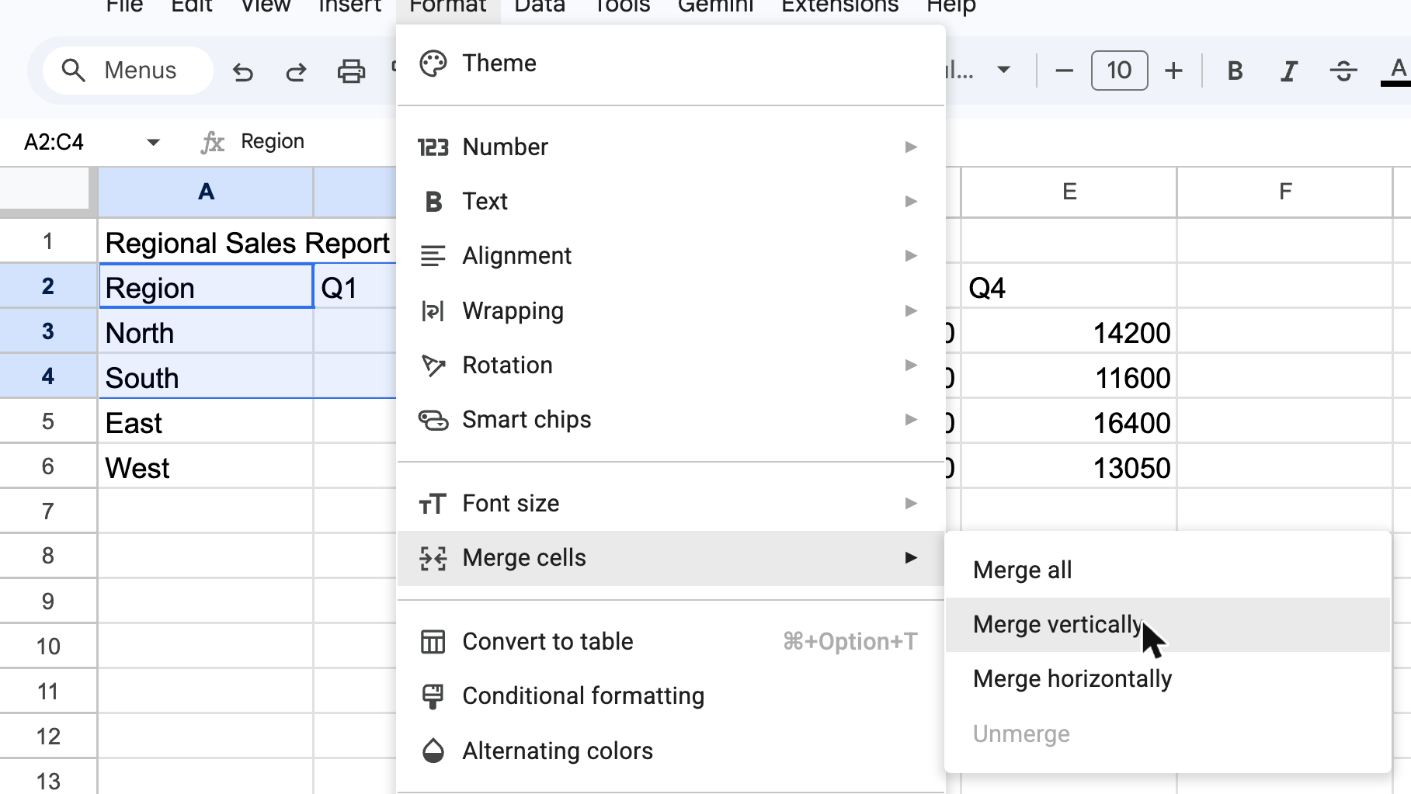
- Merge vertically merges each column separately, leaving one tall cell per column.
- Merge horizontally merges each row separately, leaving one wide cell per row.
The same options are in Format > Merge cells, which is useful if you prefer the menus to the toolbar.
Merging keeps only the top-left value
If more than one of the selected cells contains data, Sheets asks before merging:
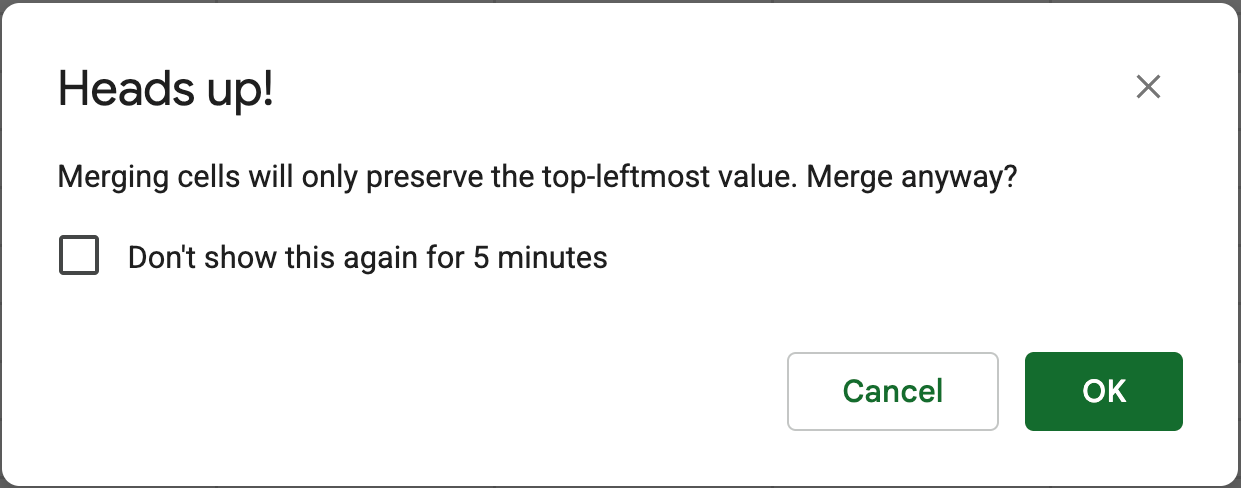
Click OK and everything except the top-left value is deleted. Unmerging afterwards does not bring it back, so use Undo (Ctrl+Z, or Command+Z on a Mac) straight away if you merged the wrong cells.
If you need the other values, copy them somewhere else first, or combine them into one cell with a formula such as =A2&" "&B2 before you merge.
Create a heading across a table
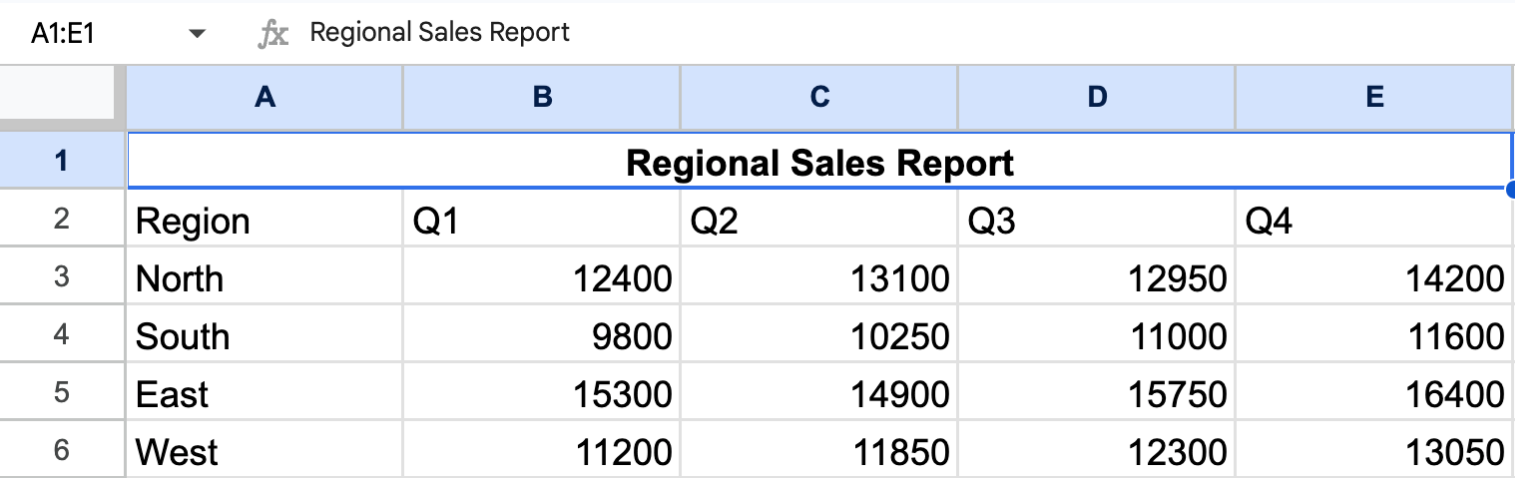
The most common reason to merge cells is a title that spans the columns of a table:
- Type the title in the first cell of the row above the table.
- Select that cell and the cells to its right, across the width of the table.
- Click Merge cells.
- Center the title with Horizontal align > Center in the toolbar. Vertical align > Middle centers it vertically if you make the row taller.
- Make the title bold or larger from the toolbar.
Check whether cells are really merged
Text that is longer than its cell spills into empty cells to its right, so a title can look merged when it isn’t. If all you want is a title that displays across the top of a table, that may be all you need.
To check, click the cell. A merged cell is selected as one box that covers the whole area, and the name box at the top left shows the full range, such as A1:E1. An unmerged cell selects only itself, even when its text spills across the cells beside it.
Unmerge cells
- Select the merged cell.
- Click the arrow next to Merge cells in the toolbar, or go to Format > Merge cells.
- Choose Unmerge.
The value returns to the top-left cell. Values that were removed when the cells were merged don’t come back.
When not to merge cells
Merged cells are for layout: titles, labels and printed reports. Avoid them inside the data you sort, filter or analyze.
- Sorting stops working. Sheets refuses to sort a range that contains a vertical merge, with the message “You can’t sort a range containing vertical merges.”
- Formulas and lookups only see the top-left cell of a merged area. The other cells are empty.
Instead of merging the data area, keep a value in every cell. For a title row, merging only the title above the data, as in the heading example, avoids these problems.
Related Google guides
- Google Drive tutorial for beginners, including how to create and share spreadsheets.
- How to double space in Google Docs.
- How to convert a PDF to Google Docs (and back).