To double space in Google Docs, select your text with Ctrl+A (Windows and Chromebook) or Command+A (Mac), click Line & paragraph spacing in the toolbar, and choose Double.
This guide covers that method, the same setting in the Format menu, custom spacing and the space between paragraphs, making double spacing the default for new documents, and the Google Docs app on a phone or tablet. The steps and screenshots are from Google Docs in a web browser, checked against Google’s help pages in November 2026.
- Press Ctrl+A (or Command+A on a Mac) to select all the text.
- Click the Line & paragraph spacing button in the toolbar. Its icon is a set of lines with an up-and-down arrow.
- Choose Double.
In this guide
- Double space a whole document · video 0:35
- Use the Format menu instead · 1:51
- Set custom line and paragraph spacing · 1:09
- Fix gaps between paragraphs · 2:31
- Make double spacing the default for new documents
- Double space in the Google Docs app
Double space a whole document
- Select all the text. You can click and drag, but the keyboard shortcut is faster and doesn’t miss anything: Ctrl+A on Windows and Chromebook, Command+A on a Mac.
- Click Line & paragraph spacing in the toolbar. It sits between the alignment and checklist buttons.
- Click Double.
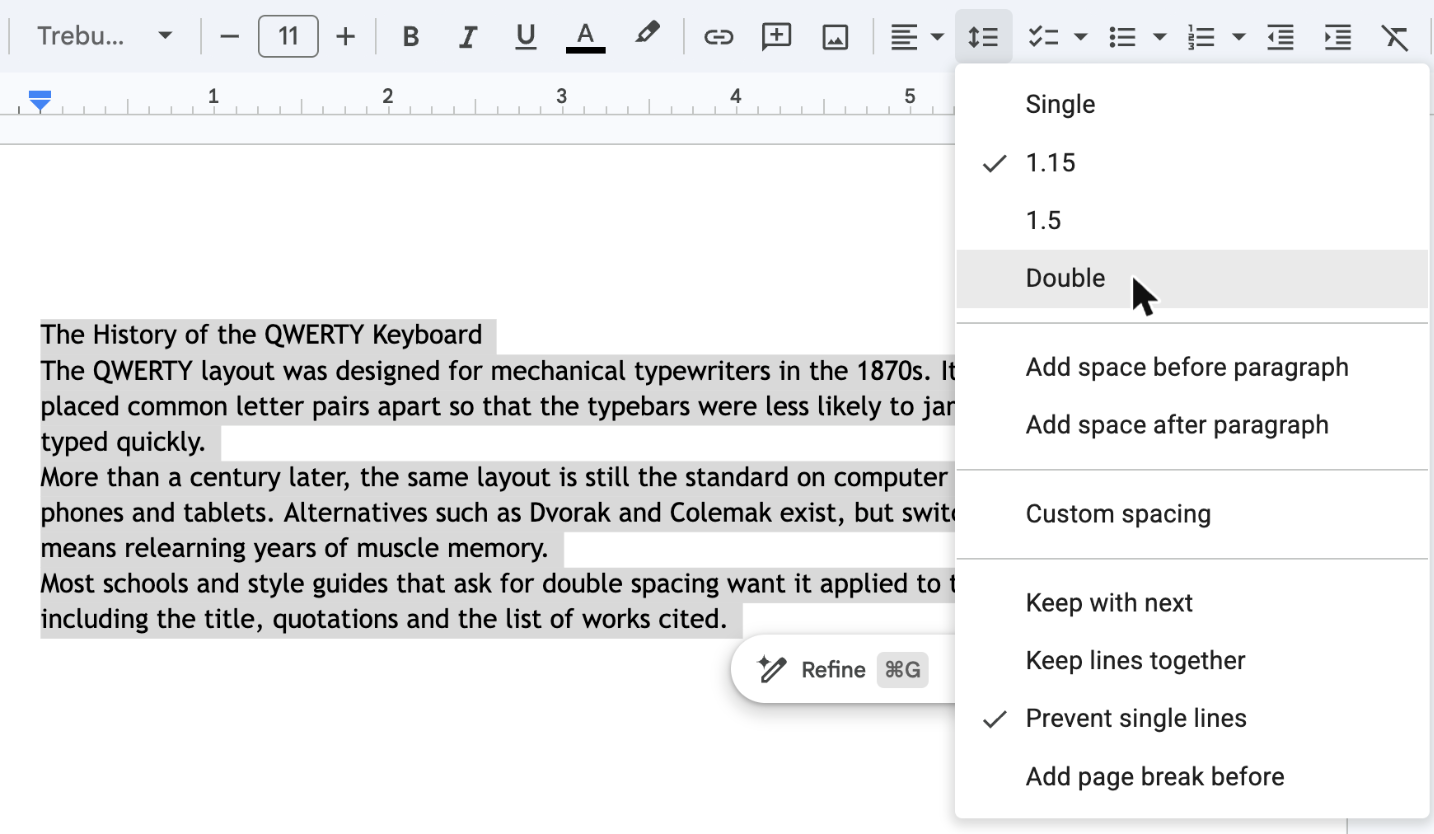
The check mark in the menu shows the current spacing.
Line spacing applies to whole paragraphs. To double space a single paragraph, click anywhere in it and choose Double. You don’t need to select the entire paragraph.
Use the Format menu instead
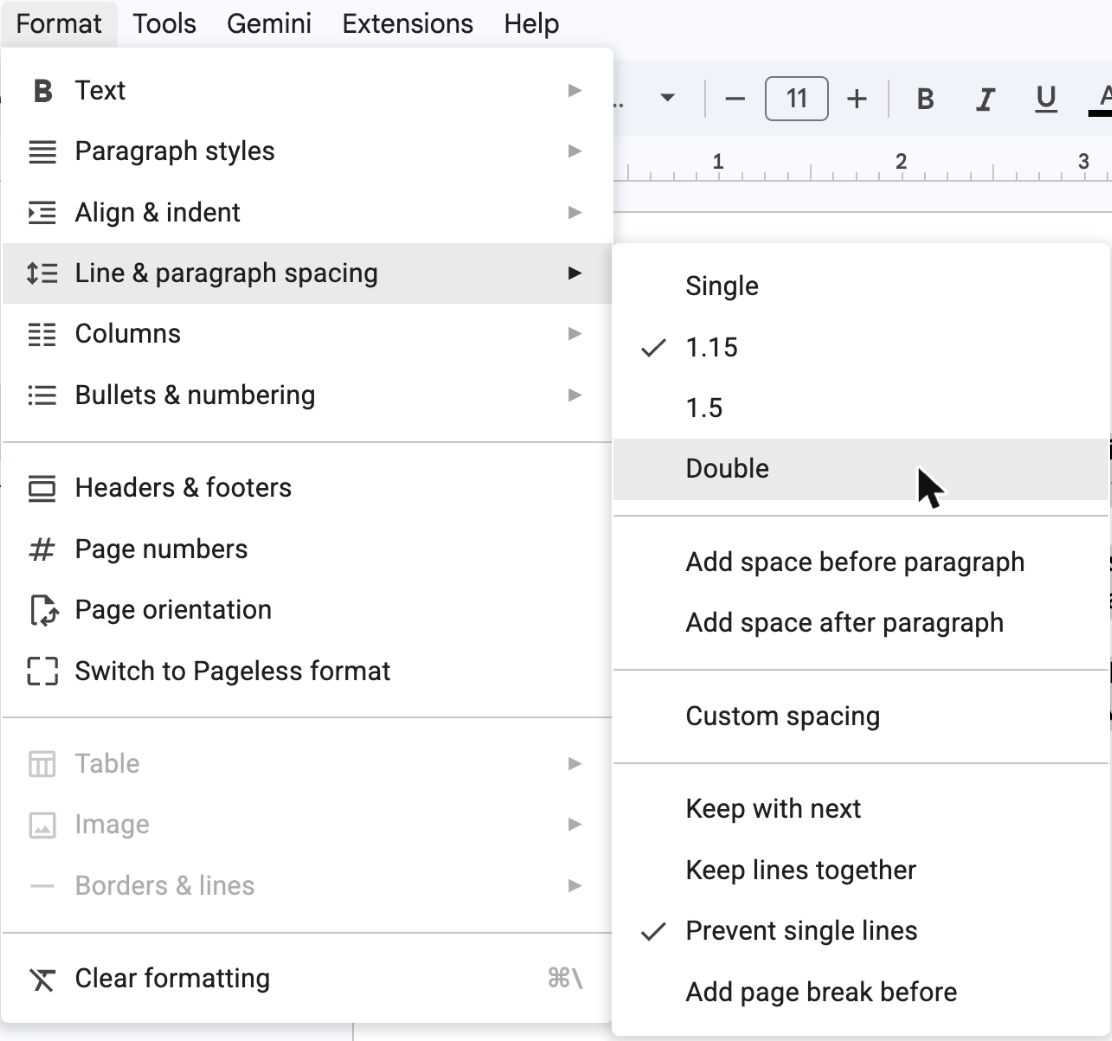
The same options are in the menu bar, which helps if the toolbar button is hidden in a narrow window:
- Select your text.
- Click Format > Line & paragraph spacing.
- Click Double.
Set custom line and paragraph spacing
Custom spacing in either menu opens a box where you can type an exact value:
- Line spacing is a multiple of single spacing: 1 is single, 2 is double, and decimals such as 1.75 work too.
- Paragraph spacing (pts) adds space, in points, Before and After each paragraph.
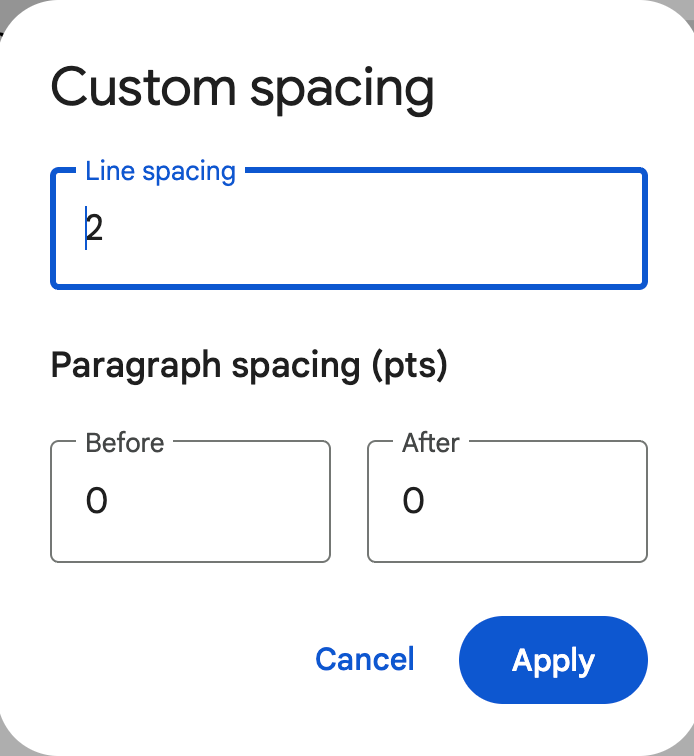
Click Apply to change the selected paragraphs.
Fix gaps between paragraphs
Line spacing controls the space between lines inside a paragraph. The gap between paragraphs is a separate setting, which is why a document can look wrong even after you choose Double.
- Gaps look too big: open Custom spacing and set Before and After to 0. If the menu shows Remove space before paragraph or Remove space after paragraph, those do the same for one side.
- Paragraphs run together: choose Add space after paragraph, or enter a value such as 12 in After.
If your assignment asks for double spacing with no extra space between paragraphs, use Double with Before and After set to 0.
Make double spacing the default for new documents
Changing the spacing only affects the current document. To start every new document double spaced, save it as part of your default styles:
- In a document, click in a paragraph of normal body text and set its spacing to Double.
- Click Format > Paragraph styles > Normal text > Update ‘Normal text’ to match.
- Click Format > Paragraph styles > Options > Save as my default styles.
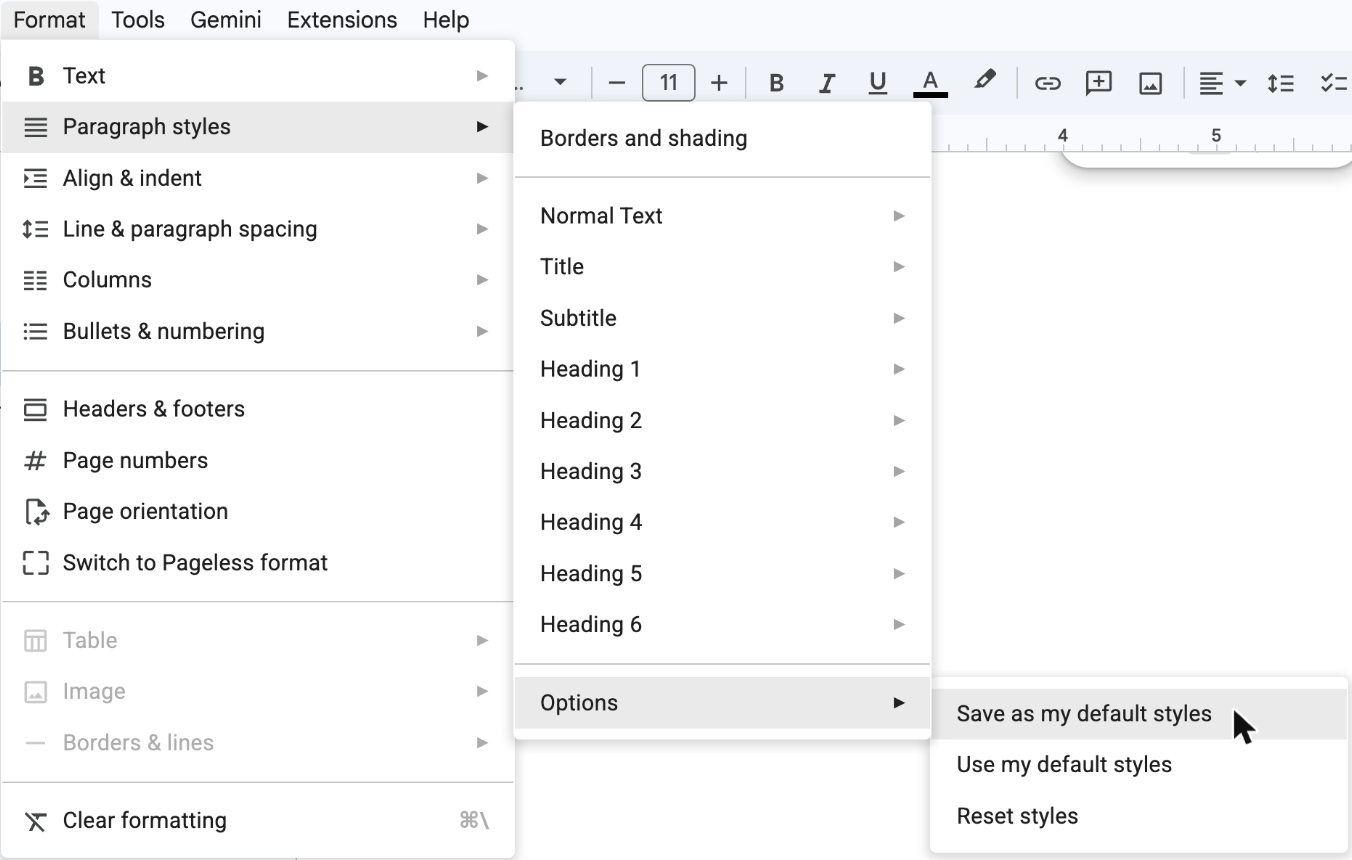
New documents will use those styles. In an older document, Options > Use my default styles applies them. Reset styles puts the document back to Google’s original styles. Saving default styles also saves the font and size of your Normal text and headings, so set those the way you want them first.
Double space in the Google Docs app
On a phone or tablet, you set line spacing as a number, so double spacing is 2:
- iPhone and iPad: tap Edit, select the text, tap Format, choose Paragraph, then use the arrows next to Line spacing to choose 2.
- Android: tap Edit, select the text, tap Format, then tap + or – next to Line spacing to choose 2.
For custom spacing and default styles, use Google Docs in a web browser on a computer.
Related Google Docs guides
- How to add hanging indents in Google Docs, the other format most works-cited pages need.
- How to change margins in Google Docs.
- How to mass remove paragraph breaks in Google Docs, for text pasted with an empty line between every paragraph.
- How to merge cells in Google Sheets.
- Google Drive tutorial for beginners.