To merge two Chrome windows, go to the window you want to empty, click its first tab, hold Shift and click its last tab, then right-click any highlighted tab and choose Move Tabs to Another Window and the window to move them to. Every tab moves at once, so you don’t have to drag them over one by one.
This guide covers that method, a second method using a tab group, which keeps the moved tabs together, and the Chrome features that stop windows multiplying in the first place: tab groups, Search Tabs, Memory Saver and tab shortcuts. The steps were checked against Chrome 158 and Google’s Chrome Help in November 2026. The screenshots are from my May 2024 video. The menu options they show are still in Chrome, though current versions add a few new items to the same menus.
- In the window you want to empty, click the first tab, then Shift-click the last tab.
- Right-click one of the highlighted tabs.
- Choose Move Tabs to Another Window, then pick the window.
In this guide
- Merge windows with Move Tabs to Another Window
- Merge windows with a tab group · video 0:29
- Work with tab groups · 1:21
- Find any open tab with Search Tabs
- Pin the tabs you always keep open
- Free up memory with Memory Saver
- Keyboard shortcuts for tabs
Merge windows with Move Tabs to Another Window
- Go to the window whose tabs you want to move.
- Highlight the tabs. Click the first tab, hold Shift and click the last one to select everything in between. To pick individual tabs instead, hold Command (Mac) or Ctrl (Windows and ChromeOS) and click each one.
- Right-click any highlighted tab and choose Move Tabs to Another Window.
- Choose the destination window from the list.
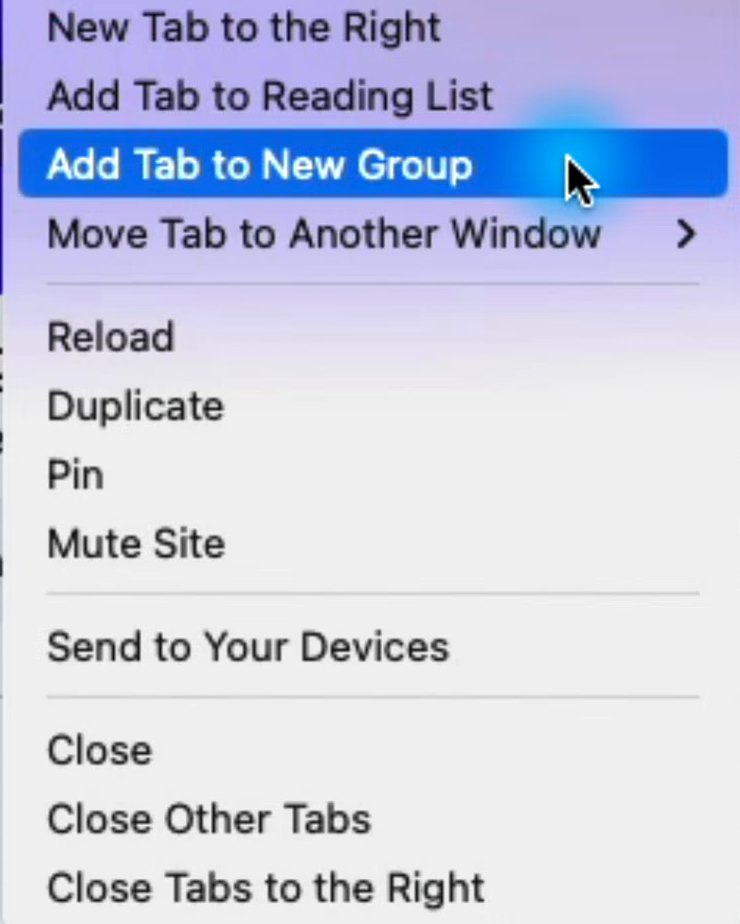
Both windows must use the same Chrome profile, or the other window won’t appear in the list. The empty window closes on its own once its last tab has moved.
You can also drag. With the tabs highlighted, drag them together onto the tab strip of the other window.
Merge windows with a tab group
This is the method from my video. It takes one more step than the first, but it leaves the moved tabs grouped together, so you can collapse them, move them again or close them as a set later.
- Highlight all the tabs in the window you want to empty (click the first tab, Shift-click the last).
- Right-click a highlighted tab and choose Add Tabs to New Group.
- Type a name for the group and pick a color, then click away from the box.
- Drag the group’s name in the tab strip onto the other window’s tab strip. All the tabs in the group come with it.

If you use tab groups regularly, you won’t need to create one just to merge windows. Drag an existing group to whichever window you’re working in.
Work with tab groups
- Add a tab to an existing group: drag it into the group, or right-click it and choose Add Tab to Group and then the group’s name.
- Collapse or expand a group: click its name in the tab strip. A collapsed group takes up the width of one label, which is the easiest way to keep a crowded tab strip readable.
- Rename, recolor or manage it: right-click the group’s name. The menu has options such as New Tab in Group, Ungroup, Close group, Delete group and Move group to new window.
- Close a group without losing it: Close group closes its tabs but keeps the group. Reopen it from the bookmarks bar or from More (⋮) > Tab groups. Delete group removes it for good.
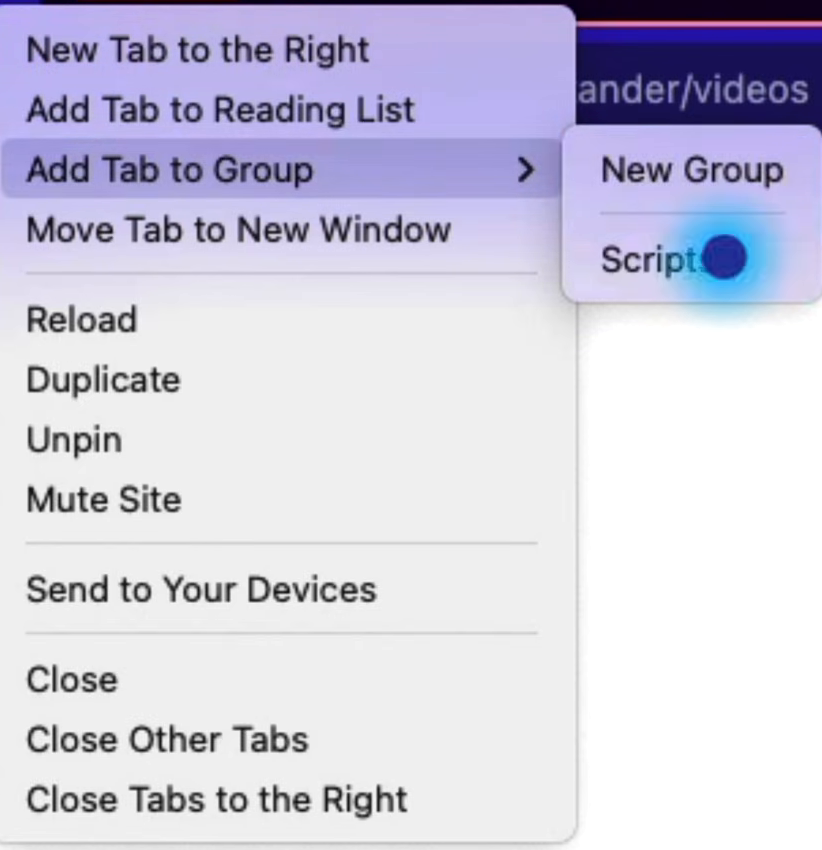
If you sync Chrome with your Google Account, Google says changes to tab groups are saved and synced across your devices automatically. In my May 2024 video, saving a group was a separate switch in the group menu. That switch is gone in current Chrome.
Find any open tab with Search Tabs
Search Tabs lists every open tab across all your windows, plus recently closed ones, and jumps to the one you pick.
- Press Command+Shift+A (Mac) or Ctrl+Shift+A (Windows and ChromeOS), or click the Search Tabs button at the end of the tab strip. Depending on your Chrome version and settings, it’s at the left or the right.
- Or type @tabs in the address bar, press Tab or Space, and then type part of the page title.
Type a few letters to filter the list, then click a result. Hover over a tab in the list to see an X that closes it without switching to it.

Pin the tabs you always keep open
Right-click a tab and choose Pin. Pinned tabs move to the left of the tab strip and shrink to just the site’s icon. That’s a good fit for sites you keep open all day, such as email and your calendar, because they no longer compete with your working tabs. To undo it, right-click the tab and choose Unpin.
Free up memory with Memory Saver
If dozens of open tabs slow your computer down, turn on Memory Saver. Go to More (⋮) > Settings > Performance and turn on Memory Saver. Chrome then frees memory from tabs you haven’t used for a while, and reloads a tab when you go back to it.
Current Chrome adds three levels: Moderate, Balanced (recommended) and Maximum. The higher the level, the sooner inactive tabs are put to sleep. You can also list sites that must always stay active. For background on why open tabs use memory, see do browser tabs slow down your computer?
Keyboard shortcuts for tabs
These are the shortcuts I use most. Mac first, then Windows and ChromeOS:
- New tab: Command+T / Ctrl+T
- Close the current tab: Command+W / Ctrl+W
- Reopen the last closed tab: Command+Shift+T / Ctrl+Shift+T. Press it again to keep reopening tabs in the order you closed them, which is useful after closing one tab too many.
- New window: Command+N / Ctrl+N
- Next and previous tab: Command+Option+Right or Left arrow / Ctrl+Tab and Ctrl+Shift+Tab
- Move the current tab left or right (Windows): Ctrl+Shift+PgUp or Ctrl+Shift+PgDn
The second video below goes through tab groups, pinned tabs, tab search, Memory Saver and these shortcuts in about four minutes.
Related guides
- How to use Chrome Incognito mode
- Rectangle: free window snapping for Mac, including a single-key shortcut that moves a Chrome tab to a new window
- Do browser tabs slow down your computer?