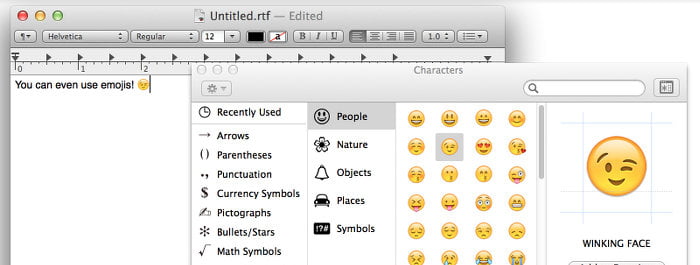
Knowing how to type or insert special characters in any Mac OS X application can really come in handy and save a lot of time researching or copy and pasting.
Quick access to these symbols and special characters can be beneficial when working on projects or presentations, communicating by email or messenger, constructing professional or legal documents and numerous other situations.
Only a simple keyboard shortcut is needed to bring up the Mac OS X character window:
Control + (Command ⌘) + Spacebar
See Also: How to Completely Uninstall Applications on Mac OS X [Video]
From the window that pops up, users will be able to select from numerous symbols across the following categories:
- Arrows
- Parentheses
- Punctuation
- Currency Symbols
- Pictographs
- Bullets/Stars
- Math Symbols
- Letterlike Symbols
- Emoji
- Latin
These Mac OS X special characters and symbols can be used in application or text box within OS X. In the video above, it is evens shown how to add an emoji to the name of a folder on the OS X desktop.
As always, if you find this video helpful, I would really appreciate a thumbs up and you may also want to think about subscribing to my YouTube channel.