
“How can I hide photos I’m tagged in on Facebook Timeline?“
This is the question that a lot of Facebook users have been asking since the release of Facebook Timeline.
See Also: Facebook Users: Protect Your Timeline Profile from the Public [Video]
In the old version of Facebook, users could easily make tagged photos private in the photos section of their profile.
In order to this in Facebook Timeline, the process is a bit different.
Facebook users must manually remove the tag in the photo or click “Remove from Timeline” on each individual photo to remove it from the photos section.
The easiest way to do this is to go to the “photos” section of your profile and click on the first photo your tagged in.
At the top right corner of the photo, you will see a link that says, “On your timeline – remove“.
If you click on “remove” the photo will be removed from your Timeline and the photos section of your profile.
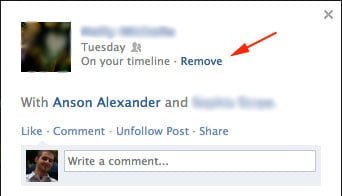
After you’ve removed the first tagged photo you can move on the second, third and so on. Each photo must be individually removed!
There is no way to have the photo still show up on your Timeline but not in the photos section.
If you ask me, this is a feature that Facebook should think about implementing in the future.
I would like photos I’m tagged in to display on my Timeline when I’m first tagged but not in the photos section.
Unfortunately, at this point, there is no way to accomplish this. Its either all or nothing!



![How to Hide Personal Information on Facebook Profiles [Video]](https://ansonalex.com/wp-content/uploads/how-to-hide-personal-information-1-232x130.jpg)